MANUAL
PREFACE
Creating new sounds from the library you have built over the years is not always an easy task. Imagine having a tool which automatically picks a few sounds out of thousands for you, depending on the keywords and metadata you want, syncs them up and delivers suggestions for new sound design compositions. Don’t like the result? No problem – just repeat the process for a new suggestion or simply swap a few sound effects for further tweaking. Sounds amazing? Great! Because SOUNDWEAVER is that tool.
This user manual applies to both Windows and macOS. If a key command differs for both platforms, Windows will be named first, followed by macOS (e.g. ctrl/cmd+Z will refer to Windows’ ctrl key and macOS’s cmd key in combination with Z).
Minimum System Requirements
WINDOWS: 7 (64-bit), 8 GB RAM, Intel® Core™ i5 or AMD equivalent
MAC: OS X 10.9, 8 GB RAM, Intel® Core™ i5
Installation
After downloading and opening the installer for SOUNDWEAVER please follow the on-screen instructions to install SOUNDWEAVER and choose the installation directory. Upon first startup, you will be asked to register SOUNDWEAVER with your iLok account.
iLok Registration
During the first start of SOUNDWEAVER, the iLok registration window pops up.
A free iLok account can be created under www.ilok.com
SOUNDWEAVER is licensed using the iLok system. You need to have an iLok account in order to use SOUNDWEAVER, setting up an iLok account is free on www.ilok.com. You will find all necessary information on how to set up an iLok account on www.ilok.com. To use SOUNDWEAVER, you can either authorize your computer or a 2nd generation or newer iLok USB device. If you authorize SOUNDWEAVER on an iLok USB device, the iLok USB device containing the correct and activated license must be plugged into your computer during use.
Please download the iLok License Manager from www.ilok.com.
After your purchase, you automatically receive an order confirmation from us containing the download link for the installer plus a 30 numeric character long iLok activation code (e.g. 1234-1234-1234-1234-1234-1234-1234-12).
- To activate this license, open the iLok License Manager application.
- Either select the menu Licenses → Redeem Activation Code or click on the small Redeem Activation Code Icon on the upper right of the application.
- You should then copy-paste the entire code you received from us into the entry form. Select your iLok USB device or your computer as the activation location to immediately activate the license on this iLok and confirm the location.
Now you are ready to go. If you have any trouble following the instructions, here is a step-by-step tutorial for the activation process:
Uninstalling
To remove the plug-in from your system, including its presets and settings, follow the step-by-step guide in our FAQ: How do I uninstall BOOM plug-ins?
If you want to use the plug-in on another computer, deactivate the license in the iLok License Manager first.
Quick Start
Setting up a New Project
Upon startup you will be prompted to either start a new project or open an existing one. Choose a project name and click the button Create New Project to get going.
Afterwards you will be prompted to enter various keywords you want to be included or excluded in the sounds you search for as well as the number of individual sound files you want to layer.
Activate Match Whole Word if you only want the specifically entered term to be included in your search (e.g. if you search for “Whoosh” it will not include files including “Whooshes”). The Use Whole Path option will look for your keywords in the full file path instead of just the sound file names (e.g. if you search for “Whooshes” all files containing “Whooshes” in their path’s name will be eligible).
Specify the Search Path, which is the location on your hard drive where you want SOUNDWEAVER to search for sound effects. By clicking the star icon SOUNDWEAVER will save the specified path in your favorites for quicker use in future projects. Clicking the RANDOMIZE button below will search for sound files matching the specified parameters and add one sound effect per layer to the timeline.
Plugin Scan
On the first launch of SOUNDWEAVER you will be asked to start a plugin rescan. The search paths for VST3 plugins will be set to the default directories of your operating system. You can further add additional directories or remove them as needed. On mac, the default AU paths of your system can not be changed. To trigger the Plugin-rescan, click on Options and choose Rescan on Windows or Rescan AU/VST3 on macOS.
NOTE: On macOS the VST3 feature is considered experimental, AU should be preferred if possible.
Please note that the plug-in scan is started as a separate process. If the scan crashes, the process is automatically restarted. On macOS, this may result in a crash report being displayed.
Editing Groups
Each group is its own composition of sound effects. All sound effects are automatically aligned at their hitpoint to ensure a playback in sync. You can edit multiple parameters, such as pitch, offset, gain or pan per individual sound. SOUNDWEAVER is fully compatible with BOOM Library sound effects including multiple variations. It will detect individual variations to let you choose your favorite — or click the shuffle button to choose one at random.
You can edit your keyword and search path specifications for a group by clicking the Keywords or Path buttons in the top right. You can re-randomize a single sound effect, a whole group or all groups by clicking the respective dice icon  in track control or group bar or the large RANDOMIZE button at the bottom of the interface. It is also possible to import audio files from your file browser directly into SOUNDWEAVER via drag and drop.
Snapshots
If you like what you hear but don’t want to export it yet you can create a snapshot of your current session. On the right-hand side you will find the Snapshot menu. By clicking the + button you create a new snapshot. These will get numbered through from 01 and up, preceded by the word you specify in the Prefix text field (“Snapshot_” is standard).
NOTE: Replacing sound files will remove those from previous snapshots. When loading them, the removed sounds won't be loaded again.
Exporting Audio
SOUNDWEAVER is designed to kick off your imagination and speed up your workflow coming up with unique sound effects. Any additional mixing and mastering can be done in the DAW of your choice.
The easiest way to transfer sound files is via the drag and drop feature. Click the Prepare for Drag & Drop button to the bottom right to render the sound files. Afterwards you can drag and drop them from the big hand icon  directly into the program you want to edit them — or simply your file browser.
Main Window Overview
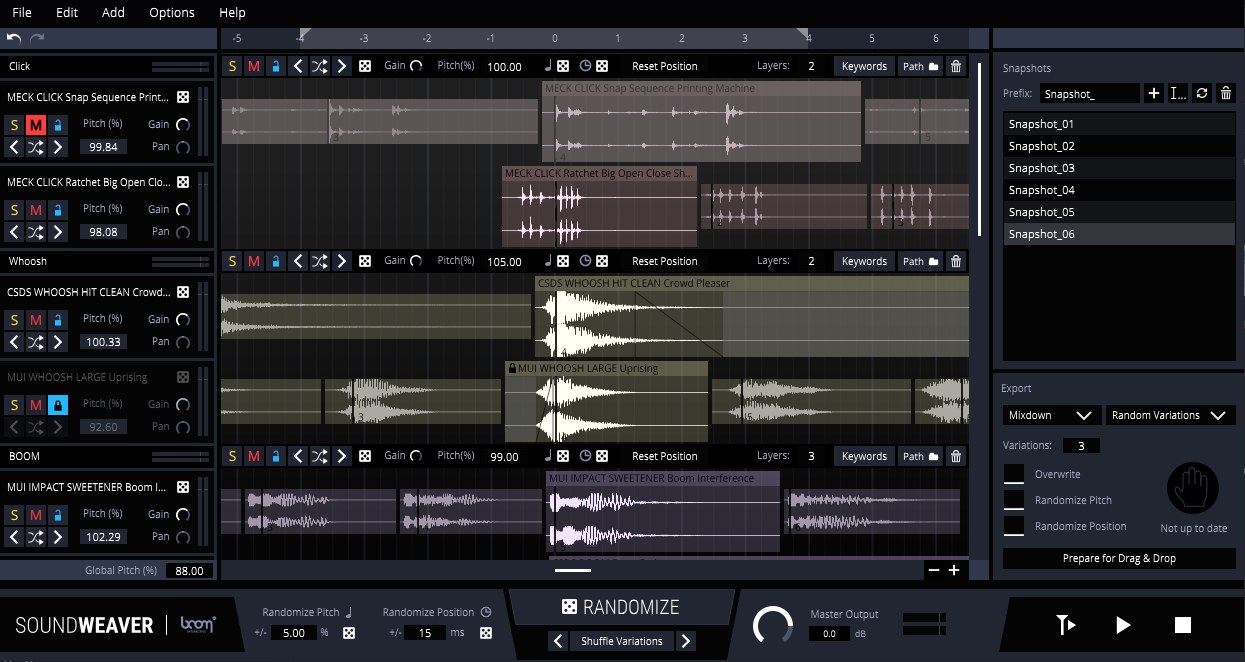
The main window of SOUNDWEAVER is divided into the following sections: the Menu Bar, the Timeline with its Ruler, Group Bars, Track Controls and Regions, the Global Controls and Transport at the bottom, and the Snapshots and Export panels on the right.
- MENU BAR — File, Edit, Add, Options, View and Help menus
- RULER — Time axis around the hitpoint at zero, including the loop region
- GROUP BAR — Controls affecting the audio of a full group
- TRACK CONTROL — Controls for each individual track
- REGIONS — The sound effects and their variations, aligned at their hitpoints
- SNAPSHOTS — Saved states of your session
- EXPORT — Prepare for Drag & Drop
- GLOBAL CONTROLS — Parameters affecting all unlocked groups and tracks
- TRANSPORT — Playback navigation
Menu Bar

On the very top of the window (Windows) or of your screen (macOS) you will see five options in the program’s menu bar.
File
The file menu includes several options to work with new and existing projects within SOUNDWEAVER.
| Option | Shortcut | Description |
|---|---|---|
| New | ctrl/cmd+alt+N | Sends you to the project dashboard. |
| Open | ctrl/cmd+O | Opens a file browser to look for an existing project. |
| Recent Projects | Includes a dropdown list of up to 10 projects which you have recently worked on. | |
| Save | ctrl/cmd+S | Saves the progress of your current project. |
| Save as | ctrl/cmd+alt+S | Saves your project with specified name and location. |
| Export Audio | ctrl/cmd+E | Opens the export audio dialog. |
| Quit | alt+F4 / cmd+Q | Quits the application. |
Edit
The edit menu contains actions applied to your currently open session. The undo and redo options are displayed beneath the menu bar as clickable arrow icons. This will also affect your Plugin instances according to Functionality and Limitations of said Plugin.
| Option | Shortcut | Description |
|---|---|---|
 Undo Undo | ctrl/cmd+Z | Cancels your last performed action. |
 Redo Redo | ctrl/cmd+Y | Recovers your last undone action. |
| Randomize Selected Tracks | ctrl/cmd+shift+R | Randomizes all selected again with their previous specifications. |
| Delete Selected Tracks | delete/backspace | Delete selected tracks from your session. |
| Reset All Positions | Moves active sound variations so that their sync point is at 0. | |
| Solo Selected Tracks | shift+S | Sets all selected tracks to solo. When active only the audio of these tracks plays on playback. |
| Mute Selected Tracks | shift+M | Sets all selected tracks to mute. When active, except for soloed tracks, none of the audio these tracks play on playback. |
| Select All Tracks | ctrl/cmd+A | Select all existing tracks in your session. |
Add
This menu contains options to add content to your project.
| Option | Shortcut | Description |
|---|---|---|
| Group | ctrl/cmd+N | Opens the Add Group dialog. |
| Sounds Manually | ctrl/cmd+M | Lets you add specific files from your hard drive to the project. |
Options
SOUNDWEAVER’s options and project preferences are in this menu.
| Option | Shortcut | Description |
|---|---|---|
| Audio Settings | F9 | Adjust properties like playlist length (if you’re using very long sound files), set your audio playback device type and output, as well as the sample rate and audio buffer size. If you want to use SOUNDWEAVER with another audio program at the same time, they should run at the same sample rate. It is not recommended to change the sample rate while another audio program is running. |
| Shortcuts | F10 | Change existing shortcuts to make all those listed in the column left to this obsolete. |
| Search Paths | F11 | Manage favorite search paths. |
| Plugins | Manage your plugin directories. |
View
Via the view menu you can select which effect rack should be displayed.
| Option | Shortcut | Description |
|---|---|---|
| Master Effect Rack | ctrl/cmd+1 | This will bring up the effect chain of your master track. |
| Group Effect Rack | ctrl/cmd+2 | This will bring up the effect chain of your currently selected group. |
| Channel Effect Rack | ctrl/cmd+3 | This will bring up the effect rack of your currently selected channel. |
| Hide Effect Rack | ctrl/cmd+4 | This will hide the effect rack. |
| Close Plugin Windows | ctrl/cmd+W | This will close all currently open Plugin windows. |
Help
| Option | Shortcut | Description |
|---|---|---|
| View Help | F12 | Opens the very document you are looking at right now. |
| About SoundWeaver | Views SOUNDWEAVER program information such as its version number or the lovely people who have invested their time and hard work to make this program available to you. |
Project Dashboard
Whenever you create a new project the project dashboard will be displayed first.
Create
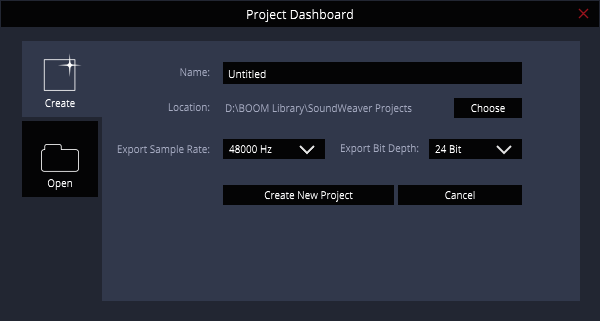
Enter the name of your project and choose a location where the project file and audio files will be placed. You can set the export sample rate and bit depth already; however, these can always be changed later in the Export Audio window. Click on Create New Project to start.
Open
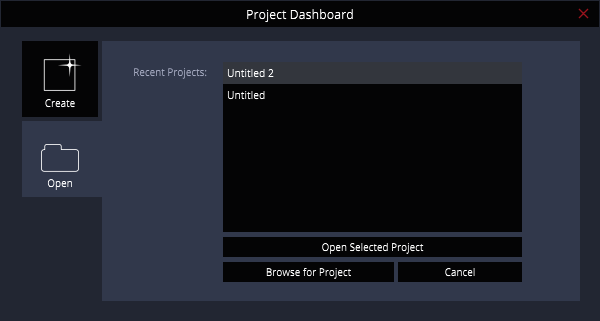
Choose either from a list of recently used projects or browse for a project on your computer to open it.
Add Groups
Define keywords which will be used to search for sound files. You can specify keywords to be excluded from your search as well. Clicking on the small + next to the group tab or hitting the tab key three times will create a new group.
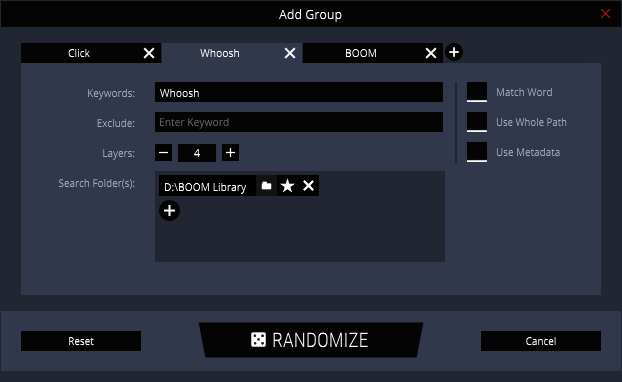
Match Word
Only the full entered word(s) will be searched for (e.g. keyword “Whoosh” will not find files including “Whooshes”).
Use Whole Path
Keywords will be searched not just in file names but in the folder names of the search path as well.
Use Metadata
In addition to searching for file names, SOUNDWEAVER will also scan all of the files’ metadata if available such as it is in all BOOM Library files.
CAUTION: Using this feature will notably slow down search.
Layers
The number of tracks you want the group to have. Each track will include a different sound file.
Search Path(s)
Location(s) on your hard drive you want SOUNDWEAVER to look through. Toggle Favorite will store the specified path in the dropdown menu.
Bottom Bar
On the bottom bar you can see three buttons. Reset will clear everything you have entered so far. RANDOMIZE creates the group(s) according to your entered specifications. Cancel closes the dialog, disregarding everything entered.
Timeline
Groups are created containing their sound effects. Each sound effect will be placed on its own track, aligned at its hitpoint. You can zoom in and out by clicking and holding the + and - buttons in the bottom right or use ctrl/cmd+mousewheel.
Ruler

At the top of the timeline you see the ruler, by default reaching from -75 to 75 seconds. You can change its length in the Options menu. Alignment of the sound effects’ hitpoints is at zero, designating the negative region as before and the positive after the hitpoint. Use the scroll wheel while hovering over the ruler to zoom.
The white stripe within the ruler is the loop region. Double clicking activates and deactivates it, dragging the little white edges expands or retracts the region. Dragging the loop region with the right mouse button moves it around entirely.
Group Bar

Above every group the group bar is displayed. It includes several options affecting the audio of the full group.
| Function | Description |
|---|---|
| Name | Name of the group, double click to edit. |
 VU Meter VU Meter | Output level display for the group. |
 Solo Solo | When active only the audio of this and other soloed groups/tracks play on playback. Hold shift to solo multiple groups and/or tracks. |
 Mute Mute | When active, except for soloed tracks, none of the audio of this group plays on playback. Hold shift to mute one group or track exclusively. |
 Lock Lock | Locks the current group so no action will affect it until unlocked again. |
 Previous Variations Previous Variations | Moves the active variation one to the left for all of the group’s unlocked tracks. |
 Shuffle Variations Shuffle Variations | Chooses a random variation for each of the group’s unlocked tracks. |
 Next Variations Next Variations | Moves the active variation one to the right for all group’s unlocked tracks. |
| Randomize | Loads a newly randomized sound effect for each unlocked track of this group. |
 Group FX Group FX | Brings up the Group Effect Rack. |
| Gain | Adjusts the output level of the individual group. Hold ctrl/cmd to fine adjust. Click mouse wheel or alt+left mouse to reset. |
| Pitch (%) | Adjusts the playback rate of the group. Changes affect both pitch and length. Drag up and down for value changes, double click to manually enter value. Hold ctrl/cmd to fine adjust. Click mouse wheel or alt+left mouse to reset to 100%. |
 Randomize Pitch Randomize Pitch | Randomizes playback rate for each of the group’s track. The hitpoint always stays in sync. Uses global Randomize Pitch value. |
 Randomize Position Randomize Position | Randomizes timing offset for each of the group’s track. Uses global Randomize Position value. |
| Reset Position | Resets the position of each sound effect back to hitpoint at zero. |
| Layers | Number of tracks in a group. Drag up and down for value changes, double click to manually enter value. Click mouse wheel or alt+left mouse to reset to three. |
| Keywords | Click to edit keywords and search options used for the group. |
| Path | Click to edit search paths where SOUNDWEAVER looks for the group’s sound effects. |
 Delete Delete | Deletes the group. |
Track Control
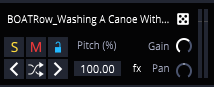
On the left end of a track, you see its control panel. You can customize several aspects of each individual track.
| Function | Description |
|---|---|
| Name | Named after the loaded sound effect. Can be changed by double clicking on it. |
| Randomize | Replaces the track’s current sound effect with another according to the group’s specified keywords, if available. |
| Solo | When active, only the audio of this and other soloed tracks/groups play on playback. You can also select a track and solo it with shift+S. Hold shift to solo multiple tracks and/or groups. |
| Mute | When active, audio of this track will not play. You can also select a track and mute it with shift+M. Hold shift to mute one track or group exclusively. |
| Lock | Locks the current track so no action will affect it until unlocked again. |
| Pitch (%) | Adjusts the playback rate of the track. Changes affect both pitch and length. Drag up and down for value changes, double click to manually enter value. Hold ctrl/cmd to fine adjust. Click mouse wheel or alt+left mouse to reset to 100%. |
| Gain | Adjusts the output level of the individual track. Hold ctrl/cmd to fine adjust. Click mouse wheel or alt+left mouse to reset. |
| Previous Variation | Moves the active variation one to the left. |
| Shuffle Variation | Chooses a random variation for the selected track. |
| Next Variation | Moves the active variation one to the right. |
| Playback Rate | Adjust the playback rate of the track. |
| Track FX | Open the Channel Effect Rack window. |
| Pan | Pan the individual track to the left or right. |
| Right Click → Duplicate Track | Adds another track with the same parameters as this track to the group. |
| Right Click → Delete Track | Removes track from the project. |
 VU Meter VU Meter | Output level display for the track. |
Regions
To the track control’s right, the sound effects are displayed. If a chosen sound effect — like many from BOOM Library — contains more than one variation, it will be divided into multiple regions, each representing a different variation.
To switch to a different region, you can either select the region’s track and use the left and right arrow keys or simply double click on the region you want to switch to. Hold ctrl/cmd to select multiple individual tracks. To select multiple adjacent tracks, select the first track, hold down shift and select another track. You can move your track selection up and down with the arrow keys. Hold down shift and use the up and down arrows to select multiple adjacent tracks.
The small black line inside a region is the hitpoint. This is the region’s sync point which marks the most significant impact of a sound effect. It is automatically determined from SOUNDWEAVER upon import but can be adjusted via dragging.
Dragging the whole sound effect moves its position on the timeline so it is played back earlier or later.
The four corners of a region can be dragged to apply fades. Grab and move the top corners to adjust fade in and fade out times and the lower corners for trimming the start or end of the region.
TIP: Holding down ctrl/cmd and dragging edges, fades or hitpoints will apply the changes to all regions of the sound effect.
Right clicking a region opens a context menu for different region actions.
| Action | Shortcut | Description |
|---|---|---|
| Split Region | Creates two regions out of the current one. | |
| Merge with next Region | Combines current region with its right neighbor. | |
| Adjust Threshold | Opens a dialog to adjust region detection settings. Useful if default region detection by SOUNDWEAVER brought unfavorable results. The standard setting for importing audio is -80dB, 200ms. If too many variations were detected, decrease the threshold (to e.g. -90dB) and/or increase duration (to e.g. 350ms). If too few were detected, increase the threshold (to e.g. -70dB) and/or decrease duration (100ms). A new region is detected as soon as the volume is below the threshold for the specified duration. Click the Analyze button to have the changes take effect. | |
| Reset Position | shift+left click | Resets the sound effect back to hitpoint at zero. |
| Reveal Sound in Explorer/Finder | Reveals the original location of the sound effect in your file browser. |
Global Controls
Below the timeline there are multiple parameters which affect all unlocked groups and tracks of the whole project.
| Function | Description |
|---|---|
| Global Pitch (%) | Adjusts the playback rate multiplier for all tracks. Globally affects all individual pitch adjustments to tracks and groups, including locked tracks and groups, in both pitch and length. Drag up and down for value changes, double click to manually enter value. Hold ctrl/cmd to fine adjust. Click mouse wheel or alt+left mouse to reset to 100%. |
| Randomize Pitch | Changes every track’s playback rate to a random amount up to the specified value. A setting of 5% means the pitch value will be multiplied or divided by a value between 1.0 and 1.05. |
| Randomize Position | Offsets sound effects on every track up to the specified value. |
 RANDOMIZE RANDOMIZE | Every unlocked track gets a new randomly selected sound effect. |
| Previous Variations | Moves active variations one to the left for all unlocked tracks. |
| Shuffle Variations | Every unlocked track's sound effect variation will be set to one random. |
| Next Variations | Moves active variations one to the right for all unlocked tracks. |
 Master Output Master Output | Adjusts the total output volume of the project, including locked groups and tracks. Hold ctrl/cmd to fine adjust. Click mouse wheel or alt+left mouse to reset. This does also affect the output volume of exported material. |
| Master FX | Open the Master Effect Rack window. |
 VU Meter VU Meter | Level display of the master output. |
Transport
Located in the bottom right corner is the playback navigation. Use this to listen to your current project.
| Action | Shortcut | Description |
|---|---|---|
 Toggle Play from Last Position Toggle Play from Last Position | ctrl/cmd+shift+T | When active, the playhead resets to its previous position when pausing playback. |
  Play / Pause Play / Pause | spacebar | Starts or pauses the playback of the project. |
 Stop Stop | ctrl/cmd+spacebar | Stop playback and reset playhead back to zero. |
FX Rack
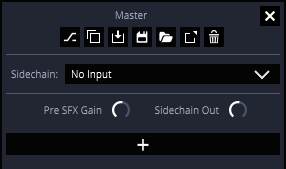
The Effect Rack for the Master, Group and Channel Tracks share the same layout and functionalities. You can toggle the visibility of a Rack by clicking on the fx button or via the View menu.
NOTE: The maximum Plugin Count per Rack is limited only by your device performance.
| Action | Description |
|---|---|
 Bypass Processing Bypass Processing | Bypass the entire effect chain via the Bypass button at the very left of the FX Rack menu. You will also find additional Bypass controls for every single Plugin instance. |
 Copy Chain Copy Chain | Copy the entire effect chain. |
 Paste Chain Paste Chain | Paste the copied effect chain. This will replace the existing chain. Undo / redo is supported for this action. |
 Save Chain Save Chain | Save the effect chain. Note that you can create subfolders for various categories to organize your effect chain directory. |
 Load Chain Load Chain | Load the effect chain. |
 Close/Open Close/Open | Close / Open all Plugin instance windows. |
 Clear Chain Clear Chain | Delete the entire effect chain. Undo / redo is supported for this action. |
| Sidechain | Select your Sidechain Input Signal. Please note that backwards connections are not allowed, meaning for a Channel you can only select other Channels as Sidechain Input, for a Group you can select Channels or other Groups as Input and for the Master Effect Rack you can choose both Channels and Groups as Sidechain Input. |
| Pre SFX-Gain | Adjust the Input Gain for the Effect Rack. |
| Sidechain Out | Adjust the Sidechain Output Gain. |
 Add Plugin Add Plugin | Add a Plugin instance via the Plus (+) icon. |
| Latency | At the very bottom of the FX Rack, you will find the latency displayed in milliseconds and samples. You can reset or set the latency manually by right-clicking on the latency display and selecting Reset Latency or Set Latency. |
Snapshots
A snapshot is basically a saved state of the chosen variations in your current session that you can return to at any time. This offers the possibility to keep a compelling iteration stored and yet continue to evolve the sound even more without losing the current state.
NOTE: Replacing sound files will remove those from previous snapshots. When loading them, the removed sounds won't be loaded again.
| Action | Shortcut | Description |
|---|---|---|
| Prefix | Contains the term which your snapshots will begin with. Every new snapshot will be named after the prefix and an ascending number, starting at 01. | |
| Add | ctrl/cmd+Q | Adds the current state of your project as a new snapshot. |
 Rename Rename | Change the name for the selected snapshot. | |
 Update Update | Overwrites the selected snapshot with your current project status. | |
| Delete | Removes the selected snapshot. |
Export
SOUNDWEAVER has the capability to render multiple iterations of a session at once. Furthermore, you can drag and drop rendered sound files directly into your audio editing system.
Prepare for Drag & Drop
The easiest way to render your project’s audio is to make use of SOUNDWEAVER’s Drag & Drop function. Use the area in the bottom right to access the feature. Sample rate and bit depth along with other export parameters will be adopted from your project settings and can be adjusted in the Export Audio dialog (see next chapter for more).
| Function | Description |
|---|---|
| Left dropdown menu | Defines summing of the exported sound files. Muted tracks will not be rendered. If tracks are on solo, only their audio will be rendered. Mixdown: Renders the full audio, i.e., what you hear through the master output, as a single file. Useful if you do not plan to perform any further mixing of individual groups or tracks. Groups: Renders one audio file for each group. Useful if you want to retain control over the different elements of your sound for further mixing. Tracks: Renders one audio file for every single track. Useful if you want to have complete control over every single layer of a sound when further mixing. |
| Right dropdown menu | Defines the source of your export. Random Variations: Exports as many variations of the project as specified. Snapshots: Renders all of the existing snapshots. Current Variation: Only renders the current state of the project. |
| Variations | Only affects Random Variations mode. The number of variations you want to be rendered. Drag up and down for value changes, double click to manually enter value. Hold ctrl/cmd to fine adjust. Click mouse wheel or alt+left mouse to reset to 3. |
| Overwrite | If activated, a re-render will overwrite the files of the previous export. Overwritten files cannot be restored, so only use with absolute certainty! |
| Randomize Pitch | Does not affect Snapshots mode. Randomizes playback rate for each exported variation. Global value specified in Randomize Pitch will be used. |
| Randomize Position | Does not affect Snapshots mode. Randomizes timing offset for each exported variation. Global value specified in Randomize Position will be used. |
| Prepare for Drag & Drop | Renders audio files to a folder called “bounced” located in your project folder. Click again if the drag and drop status is Not up to date. |
| Drag & Drop | From here, you can drag your exported files and drop them directly into your audio editing system or any location on your hard drive. |
Export Audio
Access the Export Audio dialog by choosing File → Export Audio or use the shortcut ctrl/cmd+E.
| Function | Description |
|---|---|
| Export Name | Name of the exported file. Only applies to Export Mode Mixdown. Does not affect Prepare for Drag & Drop. |
| Left Export Mode dropdown | Defines summing of the exported sound files. Muted tracks will not be rendered. If tracks are on solo, only their audio will be rendered. Mixdown: Renders the full audio, i.e., what you hear through the master output, as a single file. Useful if you do not plan to perform any further mixing of individual groups or tracks. Groups: Renders one audio file for each group. Useful if you want to retain control over the different elements of your sound for further mixing. Tracks: Renders one audio file for every single track. Useful if you want to have complete control over every single layer of a sound when further mixing. |
| Right Export Mode dropdown | Defines the source of your export. Random Variations: Exports as many variations of the project as specified. Snapshots: Renders all of the existing snapshots. Current Variation: Only renders the current state of the project. |
| Filenaming tracks | Only affects Tracks Export Mode. Group Name + Number: All rendered audio files will be named after the group they belong to and an ascending number, according to their position within the group. Name of Channel: Each rendered audio file will be named like its track. |
| Quality | Resampling quality of the exported files. A higher quality increases the render time. SOUNDWEAVER uses a sinc-based resampler to ensure your sound files stay in high quality after resampling. |
| Sample Rate | Determines the sample rate for the exported audio files. Can be set to 44100 Hz, 48000 Hz, 96000 Hz and 192000 Hz. |
| Bit Depth | Determines the bit depth for the exported audio files. Can be set to 16 Bit, 24 Bit and 32-Bit Floating Point. |
| Variations | Only affects Random Variations mode. The number of variations you want to be rendered. Drag up and down for value changes, double click to manually enter value. Hold ctrl/cmd to fine adjust. Click mouse wheel or alt+left mouse to reset to 3. |
| Randomize Pitch | Does not affect Snapshots mode. Randomizes playback rate for each exported variation. Global value specified in Randomize Pitch will be used. |
| Randomize Position | Does not affect Snapshots mode. Randomizes timing offset for each exported variation. Global value specified in Randomize Position will be used. |
| Detect Tail Method | Count from Clip End (May include silence) Use this method if you can calculate the tail length. Pre-detect SFX Tail (Longer Export Time) This method will analyze and adjust the tail length of each file automatically. Note that rendering this way will take more time. |
| Cut Tail After X Seconds | To control the maximum tail length, you can set a value in seconds after which the tail will be cut and faded out. |
| Export path | Does not affect Prepare for Drag & Drop. Displays the path on your hard drive where the audio files will be rendered to. Change by clicking the Select Path button. |
| Cancel | Closes the dialog without rendering any audio. |
| Export | Initiates the rendering process according to your settings. |
Tips & Tricks
To help you get started, here are some tips and tricks to lift off with SOUNDWEAVER and use it regularly in your future productions.
Leave Keywords Blank
If you’re not sure what keywords to look for, you do not need to specify any of them. A search without keywords will take any sound effect of your search path into consideration. Sometimes, it’s these creations which will come up with impressive new combinations and spark your inspiration for exciting new sound designs!
Extreme Global Pitch Changes
Don’t be afraid to use the Global Pitch adjusting to its extreme. Create a rim shot out of an explosion by increasing the playback rate or make a rumbling drone out of a bowed metal sound by decreasing it.
Variation Shortcuts
To work through variations quickly, you won’t even need to lift your right (or left!) hand from the keyboard to grab your mouse. If you select a track, you can switch through the variations using the left and right arrow keys or select a random variation with ctrl/cmd+T.
Huge Quantities in Barely Any Time
Just setting a small amount of a global Random Pitch and Random Position will give you a unique variation for each new export. This allows you to quickly create a huge supply of different variations of a new sound without much editing time needed.
End-User License Agreement
This license agreement is a single-user license agreement. For multi-user licenses and multi-user discounts, please contact us via service@boomlibrary.com.
The following End User License Agreement ("EULA") represents the contractual conditions between you ("Licensee" or "you") and BOOM Library ("BOOM", visit www.boomlibrary.com/about for the official legal company details and address) for the use of audio plug-ins or software including related media, documentation (e.g. manuals) and other documents and materials (e.g. presets) manufactured by BOOM ("audio plug-ins" or "software"). By installing and by registering the software on your computer, you declare yourself in agreement with these conditions. If you do not agree with these conditions, you are not allowed to install the software. Copyright laws and international copyright treaties, as well as other intellectual property laws and treaties protect the content. All rights not expressly granted to Licensee hereunder are reserved by BOOM.
Section 1 – Introduction:
- What You Get:
- You get to install the software on up to two computers that you, only, use. They can be your computer in an edit bay and a laptop for the field, or your computer at work (or school) and your computer at home, etc.
- You can copy the software only once, for the sole purpose of making a backup copy.
- If you need licenses for multiple people or more workstations, you will need to get a multi-user license from us. Please contact us for multi-user pricing.
- If you are an educator and need a license for your lab please contact us for educational pricing.
- You can export, render out, re-record or otherwise save any type of sound, noise, music, pad ("work") created with our software and its presets and use it as part of any video, game, audio library or other media production ("media projects"), even other people's media projects that you didn’t do, if the works are made from the copy of the software you have on your computer and used as per our End User License Agreement.
- What You Don’t Get:
- You don't get to make any other copies of the software.
- Please don't share our audio plug-ins or software on the internet – we are a small company and unlicensed copies hurt our ability to make the software better for you and bring you new products in the future.
Section 2 – Ownership:
- The enclosed audio software and related instructions are licensed (not sold) to you, and BOOM retains all ownership interests and intellectual property rights in the Software.
Section 3 – Software License:
- BOOM grants you a nonexclusive, nontransferable license to (i) install and use one copy of the software on up to no more than two (2) computers both of which must be owned and used by you and (ii) make one copy of the software for back-up or archival purposes only.
- The software cannot be installed on a network server, without contacting us and asking for a Network license required for each workstation served on such network. You may not:
- copy (other than for a second computer owned and used by you and for back-up purposes), disclose, publish, export, distribute, rent, lease or sublicense;
- remove any BOOM trademarks or copyright notices from;
- modify, translate or prepare derivative works of;
- use in a computer-based services business or publicly display visual output of;
- transmit by audio, digital or other electronic means or post software on any file-sharing site or
- reverse engineer, decompile or disassemble all or any portion of the software in any form, except as expressly licensed herein.
Section 4 – Audio Rights (Rights to the works):
- This license grants the rights to use our software with your audio material in order to render, process, adapt, modify or edit your audio material ("processed audio material"). Such processed audio material can be created using the presets included in the software. No additional license fee has to be paid to BOOM Library for using our software and / or presets included in the software other than the purchasing cost of this license. You are solely responsible for obtaining the right license to the processed audio material from the original producers / right holders of the audio material for further exploitation.
- This license grants the worldwide and limited right to Licensee to render, process, adapt, modify or edit your audio material ("processed audio material") using our software without further payment to BOOM Library (royalty free) for the usage of the software.
Section 5 – Limitations:
- This license expressly forbids any unauthorized inclusion of the software or parts of the software code into applications or hardware products that you manufacture for your clients.
- This license also forbids any stand-alone re-distribution method of our software, through any means, including but not limited to, re-selling, trading, sharing, re-compiling, mixing, processing, isolating, or embedding into other software or hardware of any kind, for the purpose of re-recording or reproduction as part of any free or commercial library of musical and / or sound effect samples and/or articulations, or any form of musical sample or sound effect sample playback system or device.
- All licenses and rights under this license are nontransferable, which means Licensee may not sell, gift, or in any way allow another individual or business the rights obtained pursuant to this license except to Licensee’s affiliates and successors. In the event that the Licensee is acquired by another business or organized under another business name or tax entity, all licenses and rights under this AGREEMENT may be transferred provided that number of users and workstations has not increased, and BOOM is notified of this transfer in writing within 30 days.
Section 6 – User Responsibility:
- Licensee is responsible for installation, management and operation of the software. Further, Licensee agrees to indemnify, hold harmless and defend BOOM from and against all claims or lawsuits, including attorneys' fees, that arise or result from any use or distribution of the software not expressly authorized in this Agreement.
- Warranty. BOOM warrants the software media (e.g. download) to be free from defects in materials and workmanship for a period of sixty (60) days from the date of purchase. BOOM will replace any such defective media returned to BOOM during such warranty period, provided such defect is not the result of improper use or neglect, or if BOOM is unable to do so, it will refund your price for such defective software. Replacement (or refund) is the exclusive remedy for any such defects, and BOOM shall have no liability for any other damages.
- THE FOREGOING WARRANTY IS IN LIEU OF ALL OTHER EXPRESS OR IMPLIED WARRANTIES, INCLUDING ANY WARRANTIES OF MERCHANTABILITY OR FITNESS FOR A PARTICULAR PURPOSE. IN NO EVENT WILL BOOM BE LIABLE FOR ANY KIND OF SPECIAL, INCIDENTAL OR CONSEQUENTIAL DAMAGES, INCLUDING LOST PROFITS, EVEN IF BOOM HAS KNOWLEDGE OF SUCH POTENTIAL LOSS OR DAMAGE.
Section 7 – Termination and reservation of right:
- This Agreement is effective until terminated. You may terminate it at any time by destroying the software, including all computer programs and documentation, and erasing any copies residing on computer equipment. This Agreement also will terminate if you do not comply with any terms or conditions of this Agreement. Upon such termination you agree to destroy the software and erase all copies residing on computer equipment.
- This Agreement may be subject to alterations, due to changes in law, new distribution channels, acquisition of BOOM by a third-party entity, new rules applied by third party software providers on whom BOOM's software rely on. BOOM warrants that any such alternation will happen in the best interest of the Licensee and BOOM and that BOOM will inform Licensee in due time and in written form of any such changes.
Section 8 – Agreement:
- This Agreement expresses the entire understanding between you and BOOM and supersedes all other oral or written communications relating to the software. This Agreement shall be governed and construed under the laws of the Federal Republic of Germany and subject to the exclusive jurisdiction of the courts therein.
- Some content included in BOOM's software, as well as any associated intellectual property rights and titles, belongs to third parties. This content may be protected by copyright or other intellectual property laws and treaties and may be subject to terms and conditions from the third party providing the content.
- If any section of this EULA should be or become invalid, either completely or in part, this shall not affect the validity of the remaining sections. The parties agree that they make good effort to replace the invalid section with a valid regulation which comes as close as possible to the purpose originally intended.
APPENDIX A: SOFTWARE LICENSE AGREEMENTS OF THIRD PARTIES
I - Inno Setup License:
Except where otherwise noted, all of the documentation and software included in the Inno Setup package is copyrighted by Jordan Russell. Copyright (C) 1997-2013 Jordan Russell. All rights reserved. Portions Copyright (C) 2000-2013 Martijn Laan. All rights reserved.
This software is provided "as-is," without any express or implied warranty. In no event shall the author be held liable for any damages arising from the use of this software.
Permission is granted to anyone to use this software for any purpose, including commercial applications, and to alter and redistribute it, provided that the following conditions are met:
- All redistributions of source code files must retain all copyright notices that are currently in place, and this list of conditions without modification.
- All redistributions in binary form must retain all occurrences of the above copyright notice and web site addresses that are currently in place (for example, in the About boxes).
- The origin of this software must not be misrepresented; you must not claim that you wrote the original software. If you use this software to distribute a product, an acknowledgment in the product documentation would be appreciated but is not required.
- Modified versions in source or binary form must be plainly marked as such and must not be misrepresented as being the original software.
Jordan Russell, jr-2010 AT jrsoftware.org, http://www.jrsoftware.org/
II - Roboto Fonts
This application makes use of the Roboto fonts authored by Christian Robertson and made available through Google Fonts (fonts.google.com) under the terms of the Apache Software License v2.
Version 2.0, January 2004, http://www.apache.org/licenses/
- Grant of Copyright License: Subject to the terms and conditions of this License, Apache hereby grants to You a perpetual, worldwide, non-exclusive, no-charge, royalty-free, irrevocable copyright license to reproduce, prepare Derivative Works of, publicly display, publicly perform, sublicense, and distribute the Work and such Derivative Works in Source or Object form.
- Trademarks: This License does not grant permission to use the trade names, trademarks, service marks, or product names of the Licensor, except as required for reasonable and customary use in describing the origin of the Work and reproducing the content of the NOTICE file.
- Disclaimer of Warranty: Unless required by applicable law or agreed to in writing, Licensor provides the Work (and each Contributor provides its Contributions) on an "AS IS" BASIS, WITHOUT WARRANTIES OR CONDITIONS OF ANY KIND, either express or implied, including, without limitation, any warranties or conditions of TITLE, NON-INFRINGEMENT, MERCHANTABILITY, or FITNESS FOR A PARTICULAR PURPOSE. You are solely responsible for determining the appropriateness of using or redistributing the Work and assume any risks associated with Your exercise of permissions under this License.
- Limitation of Liability: In no event and under no legal theory, whether in tort (including negligence) contract, or otherwise, unless required by applicable law (such as deliberate and grossly negligent acts) or agreed to in writing, shall any Contributor be liable to You for damages, including any direct, indirect, special, incidental, or consequential damages of any character arising as a result of this License or out of the use or inability to use the Work (including but not limited to damages for loss of goodwill, work stoppage, computer failure or malfunction, or any and all other commercial damages or losses), even if such Contributor has been advised of the possibility of such damages.
III - FLAC & OGG Vorbis
Copyright (C) 2000-2009 Josh Coalson
Copyright (C) 2011-2016 Xiph.Org Foundation
Redistribution and use in source and binary forms, with or without modification, are permitted provided that the following conditions are met:
- Redistributions of source code must retain the above copyright notice, this list of conditions and the following disclaimer.
- Redistributions in binary form must reproduce the above copyright notice, this list of conditions and the following disclaimer in the documentation and/or other materials provided with the distribution.
- Neither the name of the Xiph.org Foundation nor the names of its contributors may be used to endorse or promote products derived from this software without specific prior written permission.
THIS SOFTWARE IS PROVIDED BY THE COPYRIGHT HOLDERS AND CONTRIBUTORS ``AS IS'' AND ANY EXPRESS OR IMPLIED WARRANTIES, INCLUDING, BUT NOT LIMITED TO, THE IMPLIED WARRANTIES OF MERCHANTABILITY AND FITNESS FOR A PARTICULAR PURPOSE ARE DISCLAIMED. IN NO EVENT SHALL THE FOUNDATION OR CONTRIBUTORS BE LIABLE FOR ANY DIRECT, INDIRECT, INCIDENTAL, SPECIAL, EXEMPLARY, OR CONSEQUENTIAL DAMAGES (INCLUDING, BUT NOT LIMITED TO, PROCUREMENT OF SUBSTITUTE GOODS OR SERVICES; LOSS OF USE, DATA, OR PROFITS; OR BUSINESS INTERRUPTION) HOWEVER CAUSED AND ON ANY THEORY OF LIABILITY, WHETHER IN CONTRACT, STRICT LIABILITY, OR TORT (INCLUDING NEGLIGENCE OR OTHERWISE) ARISING IN ANY WAY OUT OF THE USE OF THIS SOFTWARE, EVEN IF ADVISED OF THE POSSIBILITY OF SUCH DAMAGE.
IV - Steinberg VST License
VST PlugIn Technology by Steinberg Media Technologies and VST PlugIn Interface Technology by Steinberg Media Technologies GmbH.
LIMITATION OF LIABILITY
- Subject to the provisions in the following sub-sections, Steinberg shall only be liable, irrespective of the legal grounds, for damages caused by the intentional or grossly negligent conduct of Steinberg, its legal representatives, managerial employees or any other vicarious agents. In the case of damage caused by the grossly negligent conduct of any other vicarious agents, the liability shall be limited to those damages which must typically be expected within the scope of an agreement such as the present one. Any further liability other than as permitted under this agreement shall be excluded.
- Any liability of Steinberg for damages arising from violation of life, body and health, from the assumption of a guarantee or from a procurement risk as well as Steinberg's liability for damages pursuant to the Product Liability Act (Produkthaftungsgesetz) shall remain unaffected.
- To the extent the liability of Steinberg is excluded pursuant to the subsections of these provisions, this shall also apply to the benefit of Steinberg's employees in the event the Licensee files any claims directly against them.
PRODUCT WARRANTY
- Steinberg licences the VST PlugIn Interface Technology on an "AS IS" basis. Steinberg makes no warranties, express or implied, including without limitation the implied warranties of merchantability and fitness for a particular purpose, regarding the VST PlugIn Interface Technology or operation and use in combination with the Licensee's program. Neither the Licensee, its employees, agents or Distributors have any right to make any other representation, warranty or promise with respect to the VST PlugIn Interface Technology.
- In no event shall Steinberg be liable for incidental, indirect or consequential damages arising from the use, or distribution of the VST PlugIn Interface Technology by the Licensee, whether theory of contract, product liability or otherwise. All claims for indemnification for losses by the Licensee itself or by third parties shall be excluded.
- Steinberg may in its sole discretion discontinue the distribution of the current VST PlugIn SDK and/or release improved versions of the Licensed Software Developer Kit but offers no commitment whatsoever those releases will occur at any time or for anybody.
INFRINGEMENT
- Steinberg represents and warrants that, as of the date of this Agreement, it is not aware of any claim or action alleging that VST, the VST PlugIn Interface Technology, or the content of the Licensed Software Developer Kit infringes any third party intellectual property right.
- Steinberg, however, disclaims any obligation of defense or indemnify of the Licensee or its customer with respect to any such claim or action, or otherwise arising out of this agreement. Steinberg shall have no liability arising out of any such actual or alleged intellectual property infringement. The Licensee, however, shall promptly notify Steinberg, in writing, of each such infringement claim of which the Licensee becomes aware. Steinberg may defend the Licensee against such claims. In such case, the Licensee is obligated to duly support Steinberg’s defense.
This is a software of BOOM Library.
All other product names, brands and trademarks, mention of which in this document and the software is for identification purposes only and does not imply affiliation or endorsement, are the property of their respective owners.

BOOM Library
Visit www.boomlibrary.com/about for the official company address.
www.boomlibrary.com
© BOOM Library, . All Rights Reserved.