MANUAL
PREFACE
WHAT IS TRANSFORCE AND WHAT MAKES IT SPECIAL?
Thanks for choosing TRANSFORCE!
Effortlessly sculpt and shape the dynamics of your audio signals with precision and ease. TRANSFORCE goes beyond traditional dynamic control by splitting your audio into independent Attack and Sustain components for targeted manipulation.
Tailor your sound to perfection by independently applying broad spectral shaping, harmonic saturation, or surgical multi-band equalization to your transients and tails.
Whether you're a professional audio engineer, a music producer, or a sound enthusiast, TRANSFORCE empowers you to elevate your audio productions to new heights. With its unrivaled combination of deep detection control, versatile processing modes, and powerful post-clipping features, this plugin is a must-have tool in your audio arsenal.
Minimum System Requirements
WINDOWS: 10 (64-bit), 4 GB RAM, Intel® Core™ i5 (relatively recent)
MAC: 10.15 (64-bit), 4 GB RAM, Apple Silicon or Intel® Core™ i5 (relatively recent)
Installation
After downloading and opening the installer of TRANSFORCE please follow the on-screen instructions to install the application.
THE MANUAL WILL BE COPIED HERE:
WINDOWS: C:\Program Files\BOOM Interactive\Transforce
MAC: /Applications/BOOM Interactive/Transforce
Registration
iLok Registration
Upon the first launch of the application, you will be asked to register TRANSFORCE with your iLok account.
A free iLok account can be created under www.ilok.com
During the first start of TRANSFORCE after installation, the iLok registration window pops up. TRANSFORCE is licensed using the PACE Licensing Platform. You need to have an iLok account to use it, however setting up an iLok account is free. You will find all necessary information on how to setup your account on www.ilok.com. You can either directly authorize your computer (machine authorization) or use a 2nd or higher generation iLok hardware dongle. A second or third generation iLok (iLok2 or iLok3) is a product of PACE that can be purchased at www.ilok.com or from any participating music retailer.
Next: please download the iLok License Manager at www.ilok.com.
After your purchase, you automatically receive an order confirmation from us containing the download link for the installer plus a 30 digits long iLok activation code (e.g. 1234-1234-1234-1234-1234-1234-1234-12).
- Open the iLok License Manager application.
- Either select the menu: License → Redeem Activation Code or click on the small Redeem Activation Code Icon on the upper right of the application.
- You should then copy paste the entire code you received from us into the entry form. Select your iLok as the activation location to immediately activate the license on this iLok and confirm the location.
Watch a step-by-step video tutorial about how to activate your iLok license:
Now you are ready to go!
Uninstalling
To remove the plug-in from your system, including its presets and settings, follow the step-by-step guide in our FAQ: How do I uninstall BOOM plug-ins?
If you want to use the plug-in on another computer, deactivate the license in the iLok License Manager first.
Quick Start
Once TRANSFORCE has been instantiated, it passes audio unaltered in its default state. The input signal is routed directly to the TRANSIENT section in the center, where your sound-shaping workflow begins.
The product doesn't show up in your DAW?
Not activating the software when first launching the DAW can lead to DAWs putting the plug-in into a "failed to scan" blocklist or blacklist.
In such cases it is usually sufficient to:
- check the DAW's blacklist/blocklist
- remove the plugin from that list
- activate it in the iLok License Manager
- cause a plug-in rescan or restart your DAW
Follow these four steps to get started quickly:
1. Set the Detection:
Start in the central TRANSIENT panel to separate your signal into ATTACK and SUSTAIN components. Adjust the Sensitivity, Hold, and Decay to isolate the desired transients. You can also use the built-in filter or an external sidechain to perfectly focus the detection engine.
2. Shape Independently:
Choose between TONE MODE for broad spectral shaping, or EQ MODE for surgical multi-band equalization with per-band drive. From there, independently shape ATTACK (left panel) and SUSTAIN (right panel).
3. Apply Post-Processing:
The ATTACK and SUSTAIN signals are then summed back together. Shape this combined result using the bottom modules: add low-end weight or chirp with STYLIZE, introduce grit with the CLIPPER, and control final peak dynamics with the LIMITER.
4. Final Refinements:
Optimize your transient separation using the Lookahead control, reduce processing aliasing with up to 4x Oversample, and balance your overall levels using the Input and Output knobs.
UI Overview
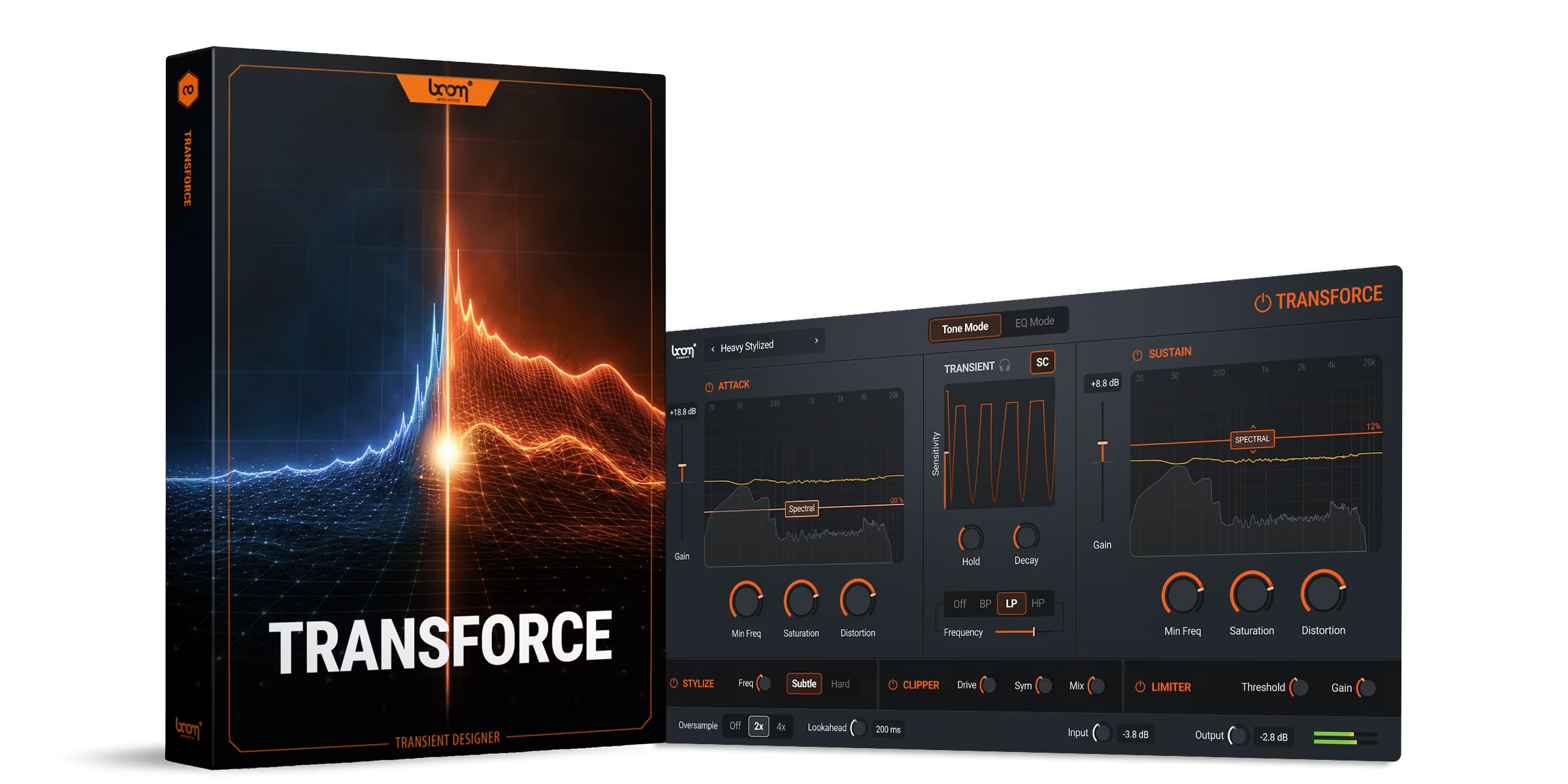
The GUI of TRANSFORCE is divided into the following sections: Header, ATTACK / SUSTAIN processing modules, the central TRANSIENT detector, and the bottom Post-Processing and Output bar.
- HEADER — Preset management, mode toggle, and global bypass
- ATTACK / SUSTAIN MODULES — Independent processing of transient and tail components (Tone or EQ Mode)
- TRANSIENT MODULE — Core detection engine that splits the signal into Attack and Sustain
- POST-PROCESSING & FOOTER — STYLIZE, CLIPPER, LIMITER, and global I/O controls
Header
The header houses preset and mode selections, alongside general utility functions like global bypass and performance monitoring.
Logo
Click on the Logo in the top left of the GUI to display the currently installed version of TRANSFORCE as well as support contact information and credits.
Presets
Left-click to load stock presets, or right-click to create and load your own user presets, providing you with starting points for various use cases.
Tone Mode / EQ Mode
Toggles the primary processing engine for the Attack and Sustain modules between broad spectral shaping (Tone) and surgical equalization (EQ).
NOTE: Tone Mode and EQ Mode are mutually exclusive. Only one is active at any time. Settings made in the inactive mode are retained, but they are not applied to the signal until that mode is selected. Switching between modes does not combine the two processing chains.
Bypass
Clicking the power button bypasses the entire plugin.
TRANSIENT Module
The Transient module is the core detection engine of TRANSFORCE, analyzing the incoming audio to split it into Attack and Sustain. It sits in the center of the GUI and feeds the separated signals to the left (Attack) and right (Sustain) processing panels.
Dialling In the Detector
Accurate transient separation is the foundation of every other process in TRANSFORCE. If the detector is not catching the events you want to shape, no amount of downstream processing produces the result you expect.
Two tools help you set the detector correctly. The Transient Monitor (headphone icon) lets you hear the detected signal in isolation, so you can confirm the detector is responding to the right events. The Filter section (BP, LP, HP) lets you focus the detector on a specific frequency range — useful for sources where the transient sits in a narrow band, such as picked strings, hi-hats, snare crack, or kick beater, where wider detection would catch unwanted material.
WORKFLOW: Enable the Transient Monitor, choose a filter type, and sweep the Frequency slider until the detector responds cleanly to the events you want to process. Then disable the monitor and continue.
Transient Monitor & Sidechain Input
Clicking on the headphone icon allows you to monitor the detected transient signal in isolation. The sidechain toggle enables the use of an external sidechain signal for transient detection.
Sensitivity
Adjusts the sensitivity of the transient detection.
NOTE: The SENSITIVITY parameter affects only the signal level used for transient detection and does not directly alter the audio output. Adjusting it changes how aggressively the plugin detects transient events.
Hold & Decay
Hold maintains the detected signal at a constant level for a defined duration, after which Decay controls how quickly the detection envelope fades out.
WARNING: If Decay is set longer than the length of your source, the detector never releases into the Sustain path. The Sustain module receives no signal and any processing applied to it has no audible effect. Check the post-analysis curve and delta visualisation in the Sustain panel to confirm the module is receiving signal.
TIP: Holding the Alt key (Windows) or Control key (Mac) while dragging the handle vertically enables fine-tuning of the Hold and Decay parameters.
Filter Section
Allows you to filter the input signal used for transient detection only. Select BP (Band Pass), LP (Low Pass), or HP (High Pass) to define which parts of the frequency spectrum the detector listens to. Use the Frequency slider to isolate specific frequency ranges to trigger the detection.
TONE MODE (Attack & Sustain Modules)
When the Header is set to Tone Mode, the Attack and Sustain panels allow you to broadly shape the character and harmonic content of your separated signals.
The Tone Mode Visualizers display both pre- and post-analysis curves, along with a yellow delta curve indicating the difference between the pre- and post-processed signals.
ATTACK
SUSTAIN
Module Bypass
The ON/OFF button located at the upper left of each panel bypasses the respective section. Because the signal is split, bypassing one module means only the other component remains audible. For example, bypassing the Attack on a gunshot would isolate its tail.
Gain
Use the Gain slider to adjust the overall level of ATTACK and SUSTAIN.
Spectral
Drag this slider up to boost or down to attenuate the tonal components of the signal, modifying its overall character.
Min Freq
Controls the lowest frequency affected by the Spectral slider; all frequencies below this value remain unaffected.
NOTE: The Min Freq parameter affects only the spectral processing and has no direct impact on Gain, Saturation, or Distortion.
Saturation & Distortion
Allows the addition of harmonics to the signal. Saturation provides a subtle, warm enhancement, while Distortion can be used to produce more extreme, aggressive results.
EQ MODE (Attack & Sustain Modules)
When switched to EQ Mode, the spectral controls are replaced by a highly customizable three-band equalizer for surgical processing. Gain functions identically to Tone Mode, adjusting the overall module level.
ATTACK (EQ Mode)
SUSTAIN (EQ Mode)
TIP: Because all filters incorporate a Drive function, EQ MODE operates as a powerful hybrid between a transparent equalizer and a harmonic saturator — each band can independently add character while shaping the frequency content.
EQ Bands
Three individual EQ bands are provided. The low and high bands can be configured via dropdown menus as Peak, Shelf, or Pass filters (with selectable slopes of 12 dB/oct or 24 dB/oct).
Frequency, Gain, Q-Factor
Standard controls to pinpoint and shape specific frequency ranges.
Drive
Drive adds harmonics exclusively to the selected frequency band.
TIP: Select a lower frequency to add low-end weight and impact to the signal. Higher frequencies introduce chirp-like transient emphasis. Experiment with the Drive control per band for creative harmonic shaping.
Post-Processing Modules
Once the Attack and Sustain signals are summed back together, they pass through three final processing blocks located at the bottom of the UI.
STYLIZE
Adds "oomph" by shifting the timing of frequencies around a defined target. Freq sets the target frequency. Switch between two intensity modes Subtle / Hard to determine how strongly the signal is affected.
IMPORTANT: It is not recommended to use TRANSFORCE in parallel when STYLIZE is active as the module alters the phase of the signal, which will result in audible phasing artifacts in parallel processing setups.
CLIPPER
Drive controls how much of the signal is pushed into clipping. Sym offsets the waveform to create asymmetrical distortion, while Mix allows you to blend the clipped signal back with the original, unclipped audio.
TIP: Use lower Drive values for subtle clipping or increase the control for more pronounced distortion. The Mix knob lets you preserve the dynamics of the original signal while adding harmonic character.
LIMITER
Adjust Threshold and Gain to apply standard peak limiting and manage the final dynamics of your signal. Use the limiter to prevent peaks from exceeding 0.0 dBFS or drive the signal further into the limiter by lowering the Threshold.
Footer
Oversample
Allows up to 4x oversampling (Off, 2x, 4x) to reduce aliasing during heavy distortion or clipping.
Lookahead
Shifts the detection window slightly ahead of the audio.
TIP: Use higher values (ms) when processing very fast and pronounced transients to optimize detection accuracy. Lower values reduce latency but may miss the very onset of sharp transients.
Input & Output
Allows final adjustment of the global input and output levels to ensure proper gain staging, accompanied by a small level meter to easily monitor your final signal.
MANUAL
PREFACE
WHAT IS TRANSFORCE AND WHAT MAKES IT SPECIAL?
Thanks for choosing TRANSFORCE!
Effortlessly sculpt and shape the dynamics of your audio signals with precision and ease. TRANSFORCE goes beyond traditional dynamic control by splitting your audio into independent Attack and Sustain components for targeted manipulation.
Tailor your sound to perfection by independently applying broad spectral shaping, harmonic saturation, or surgical multi-band equalization to your transients and tails.
Whether you're a professional audio engineer, a music producer, or a sound enthusiast, TRANSFORCE empowers you to elevate your audio productions to new heights. With its unrivaled combination of deep detection control, versatile processing modes, and powerful post-clipping features, this plugin is a must-have tool in your audio arsenal.
Minimum System Requirements
WINDOWS: 10 (64-bit), 4 GB RAM, Intel® Core™ i5 (relatively recent)
MAC: 10.15 (64-bit), 4 GB RAM, Apple Silicon or Intel® Core™ i5 (relatively recent)
Installation
After downloading and opening the installer of TRANSFORCE please follow the on-screen instructions to install the application.
THE MANUAL WILL BE COPIED HERE:
WINDOWS: C:\Program Files\BOOM Interactive\Transforce
MAC: /Applications/BOOM Interactive/Transforce
Registration
iLok Registration
Upon the first launch of the application, you will be asked to register TRANSFORCE with your iLok account.
A free iLok account can be created under www.ilok.com
During the first start of TRANSFORCE after installation, the iLok registration window pops up. TRANSFORCE is licensed using the PACE Licensing Platform. You need to have an iLok account to use it, however setting up an iLok account is free. You will find all necessary information on how to setup your account on www.ilok.com. You can either directly authorize your computer (machine authorization) or use a 2nd or higher generation iLok hardware dongle. A second or third generation iLok (iLok2 or iLok3) is a product of PACE that can be purchased at www.ilok.com or from any participating music retailer.
Next: please download the iLok License Manager at www.ilok.com.
After your purchase, you automatically receive an order confirmation from us containing the download link for the installer plus a 30 digits long iLok activation code (e.g. 1234-1234-1234-1234-1234-1234-1234-12).
- Open the iLok License Manager application.
- Either select the menu: License → Redeem Activation Code or click on the small Redeem Activation Code Icon on the upper right of the application.
- You should then copy paste the entire code you received from us into the entry form. Select your iLok as the activation location to immediately activate the license on this iLok and confirm the location.
Watch a step-by-step video tutorial about how to activate your iLok license:
Now you are ready to go!
Uninstalling
To remove the plug-in from your system, including its presets and settings, follow the step-by-step guide in our FAQ: How do I uninstall BOOM plug-ins?
If you want to use the plug-in on another computer, deactivate the license in the iLok License Manager first.
Quick Start
Once TRANSFORCE has been instantiated, it passes audio unaltered in its default state. The input signal is routed directly to the TRANSIENT section in the center, where your sound-shaping workflow begins.
The product doesn't show up in your DAW?
Not activating the software when first launching the DAW can lead to DAWs putting the plug-in into a "failed to scan" blocklist or blacklist.
In such cases it is usually sufficient to:
- check the DAW's blacklist/blocklist
- remove the plugin from that list
- activate it in the iLok License Manager
- cause a plug-in rescan or restart your DAW
Follow these four steps to get started quickly:
1. Set the Detection:
Start in the central TRANSIENT panel to separate your signal into ATTACK and SUSTAIN components. Adjust the Sensitivity, Hold, and Decay to isolate the desired transients. You can also use the built-in filter or an external sidechain to perfectly focus the detection engine.
2. Shape Independently:
Choose between TONE MODE for broad spectral shaping, or EQ MODE for surgical multi-band equalization with per-band drive. From there, independently shape ATTACK (left panel) and SUSTAIN (right panel).
3. Apply Post-Processing:
The ATTACK and SUSTAIN signals are then summed back together. Shape this combined result using the bottom modules: add low-end weight or chirp with STYLIZE, introduce grit with the CLIPPER, and control final peak dynamics with the LIMITER.
4. Final Refinements:
Optimize your transient separation using the Lookahead control, reduce processing aliasing with up to 4x Oversample, and balance your overall levels using the Input and Output knobs.
UI Overview
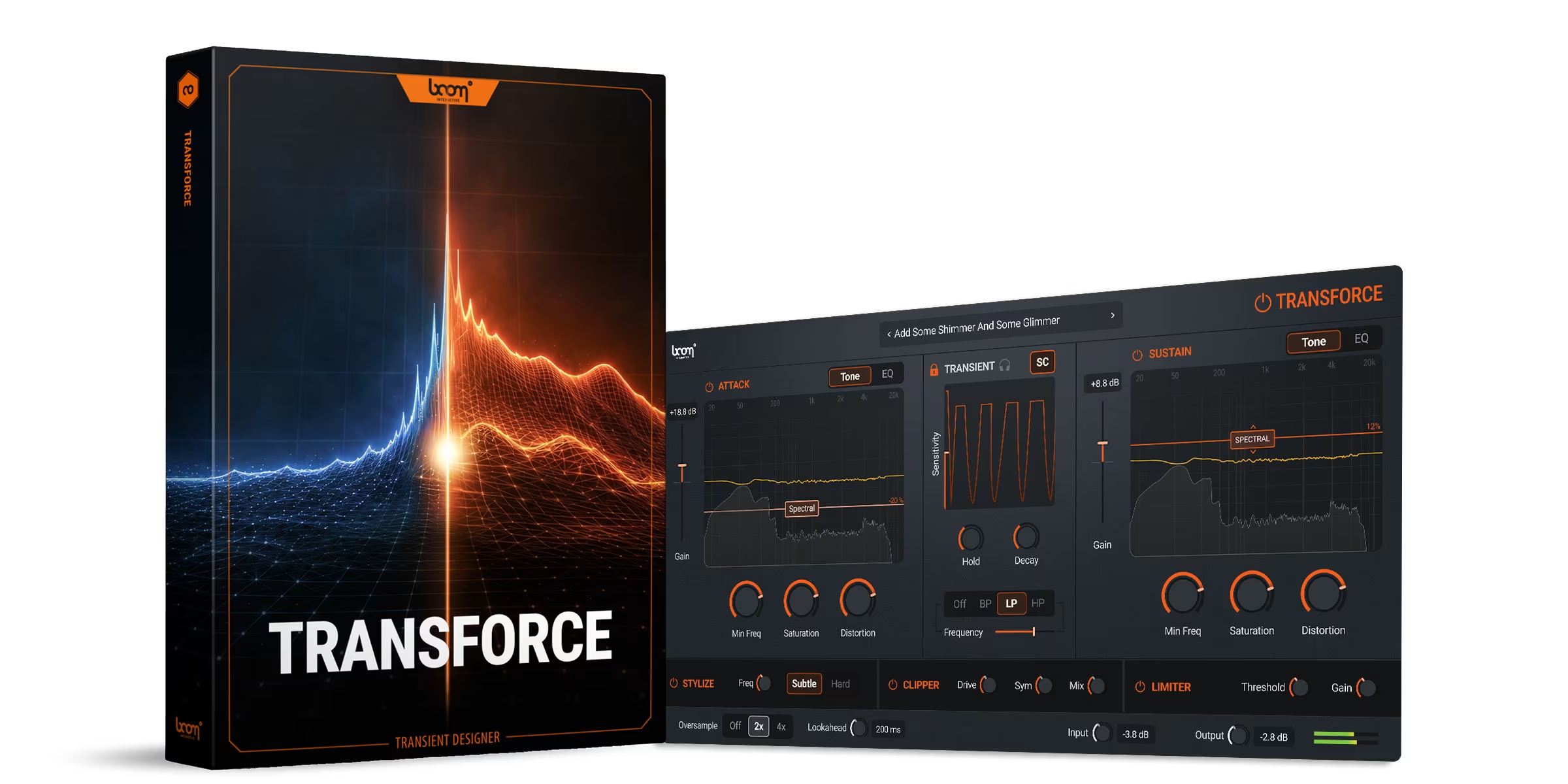
The GUI of TRANSFORCE is divided into the following sections: Header, ATTACK / SUSTAIN processing modules, the central TRANSIENT detector, and the bottom Post-Processing and Output bar.
- HEADER — Preset management, mode toggle, and global bypass
- ATTACK / SUSTAIN MODULES — Independent processing of transient and tail components (Tone or EQ Mode)
- TRANSIENT MODULE — Core detection engine that splits the signal into Attack and Sustain
- POST-PROCESSING & FOOTER — STYLIZE, CLIPPER, LIMITER, and global I/O controls
Header
The header houses preset and mode selections, alongside general utility functions like global bypass and performance monitoring.
Logo
Click on the Logo in the top left of the GUI to display the currently installed version of TRANSFORCE as well as support contact information and credits.
Presets
Left-click to load stock presets, or right-click to create and load your own user presets, providing you with starting points for various use cases.
Bypass
Clicking the power button bypasses the entire plugin.
GUI Resize
The user interface can be freely scaled to fit your screen preferences. Simply click and drag the resizer icon located in the bottom-right corner of the plug-in window to adjust the GUI size.
TRANSIENT Module
The Transient module is the core detection engine of TRANSFORCE, analyzing the incoming audio to split it into Attack and Sustain. It sits in the center of the GUI and feeds the separated signals to the left (Attack) and right (Sustain) processing panels.
Dialling In the Detector
Accurate transient separation is the foundation of every other process in TRANSFORCE. If the detector is not catching the events you want to shape, no amount of downstream processing produces the result you expect.
Two tools help you set the detector correctly. The Transient Monitor (headphone icon) lets you hear the detected signal in isolation, so you can confirm the detector is responding to the right events. The Filter section (BP, LP, HP) lets you focus the detector on a specific frequency range — useful for sources where the transient sits in a narrow band, such as picked strings, hi-hats, snare crack, or kick beater, where wider detection would catch unwanted material.
WORKFLOW: Enable the Transient Monitor, choose a filter type, and sweep the Frequency slider until the detector responds cleanly to the events you want to process. Then disable the monitor and continue.
Transient Monitor & Sidechain Input
Clicking on the headphone icon allows you to monitor the detected transient signal in isolation. The sidechain toggle enables the use of an external sidechain signal for transient detection.
Sensitivity
Adjusts the sensitivity of the transient detection.
NOTE: The SENSITIVITY parameter affects only the signal level used for transient detection and does not directly alter the audio output. Adjusting it changes how aggressively the plugin detects transient events.
Hold & Decay
Hold maintains the detected signal at a constant level for a defined duration, after which Decay controls how quickly the detection envelope fades out.
WARNING: If Decay is set longer than the length of your source, the detector never releases into the Sustain path. The Sustain module receives no signal and any processing applied to it has no audible effect. Check the post-analysis curve and delta visualisation in the Sustain panel to confirm the module is receiving signal.
TIP: Holding the Alt key (Windows) or Control key (Mac) while dragging the handle vertically enables fine-tuning of the Hold and Decay parameters.
Filter Section
Allows you to filter the input signal used for transient detection only. Select BP (Band Pass), LP (Low Pass), or HP (High Pass) to define which parts of the frequency spectrum the detector listens to. Use the Frequency slider to isolate specific frequency ranges to trigger the detection.
Detection Lock
Located at the top left of the Transient module (next to the module header), the Detection Lock icon allows you to secure your current detection settings. When enabled, your customized transient detection parameters remain unchanged while you browse and switch between different presets.
TONE MODE (Attack & Sustain Modules)
Both the Attack and Sustain modules can be independently switched between Tone and EQ modes using the toggle buttons located at the top right of each respective module. When a module is switched to EQ Mode, the spectral controls are replaced by a highly customizable three-band equalizer for surgical processing. Gain functions identically to Tone Mode, adjusting the overall module level.
The Tone Mode Visualizers display both pre- and post-analysis curves, along with a yellow delta curve indicating the difference between the pre- and post-processed signals.
ATTACK
SUSTAIN
NOTE: Tone Mode and EQ Mode are mutually exclusive. Only one is active at any time. Settings made in the inactive mode are retained, but they are not applied to the signal until that mode is selected. Switching between modes does not combine the two processing chains.
Module Bypass
The ON/OFF button located at the upper left of each panel bypasses the respective section. Because the signal is split, bypassing one module means only the other component remains audible. For example, bypassing the Attack on a gunshot would isolate its tail.
Gain
Use the Gain slider to adjust the overall level of ATTACK and SUSTAIN.
Spectral
Drag this slider up to boost or down to attenuate the tonal components of the signal, modifying its overall character.
Min Freq
Controls the lowest frequency affected by the Spectral slider; all frequencies below this value remain unaffected.
NOTE: The Min Freq parameter affects only the spectral processing and has no direct impact on Gain, Saturation, or Distortion.
Saturation & Distortion
Allows the addition of harmonics to the signal. Saturation provides a subtle, warm enhancement, while Distortion can be used to produce more extreme, aggressive results.
EQ MODE (Attack & Sustain Modules)
When switched to EQ Mode, the spectral controls are replaced by a highly customizable three-band equalizer for surgical processing. Gain functions identically to Tone Mode, adjusting the overall module level.
ATTACK (EQ Mode)
SUSTAIN (EQ Mode)
TIP: Because all filters incorporate a Drive function, EQ MODE operates as a powerful hybrid between a transparent equalizer and a harmonic saturator — each band can independently add character while shaping the frequency content.
EQ Bands
Three individual EQ bands are provided. The low and high bands can be configured via dropdown menus as Peak, Shelf, or Pass filters (with selectable slopes of 12 dB/oct or 24 dB/oct).
Frequency, Gain, Q-Factor
Standard controls to pinpoint and shape specific frequency ranges.
Drive
Drive adds harmonics exclusively to the selected frequency band.
TIP: Select a lower frequency to add low-end weight and impact to the signal. Higher frequencies introduce chirp-like transient emphasis. Experiment with the Drive control per band for creative harmonic shaping.
Post-Processing Modules
Once the Attack and Sustain signals are summed back together, they pass through three final processing blocks located at the bottom of the UI.
STYLIZE
Adds "oomph" by shifting the timing of frequencies around a defined target. Freq sets the target frequency. Switch between two intensity modes Subtle / Hard to determine how strongly the signal is affected.
IMPORTANT: It is not recommended to use TRANSFORCE in parallel when STYLIZE is active as the module alters the phase of the signal, which will result in audible phasing artifacts in parallel processing setups.
CLIPPER
Drive controls how much of the signal is pushed into clipping. Sym offsets the waveform to create asymmetrical distortion, while Mix allows you to blend the clipped signal back with the original, unclipped audio.
TIP: Use lower Drive values for subtle clipping or increase the control for more pronounced distortion. The Mix knob lets you preserve the dynamics of the original signal while adding harmonic character.
LIMITER
Adjust Threshold and Gain to apply standard peak limiting and manage the final dynamics of your signal. Use the limiter to prevent peaks from exceeding 0.0 dBFS or drive the signal further into the limiter by lowering the Threshold.
Footer
Oversample
Allows up to 4x oversampling (Off, 2x, 4x) to reduce aliasing during heavy distortion or clipping.
Lookahead
Shifts the detection window slightly ahead of the audio.
TIP: Use higher values (ms) when processing very fast and pronounced transients to optimize detection accuracy. Lower values reduce latency but may miss the very onset of sharp transients.
Input & Output
Allows final adjustment of the global input and output levels to ensure proper gain staging, accompanied by a small level meter to easily monitor your final signal.
USE CASES
TRANSFORCE is a comprehensive toolkit for altering the dynamic landscape of your audio. It can serve as a handy tool for simple mixing tasks like taming harsh hi-hats, reducing excessive punch, or gently tightening up a drum bus.
It can just as well serve as a precision tool for aggressive sound design and heavy signal manipulation. By treating the attack and sustain independently, you can easily design punchy kick drums and iconic 80s snares or completely reshape sound effects—like boosting the distant, ringing tail of a gunshot while keeping the initial blast intact.
Addressing specific frequency problems is also easier than ever. De-mud the sustain of a boomy bassline without sacrificing its initial hit, or de-harsh a piercing transient without dulling the rest of the sound. This level of targeted control allows for cleaner, punchier, and more polished mixes that simply couldn't be achieved with regular equalizers or compressors alone.
By combining deep transient detection, multi-band equalization, tonal shaping, clipping, and a high-quality limiter in one unified package, TRANSFORCE improves your workflow and helps you focus on the sound without the hassle of navigating between multiple different plugins.
There are countless opportunities for creative sound design when employing the flexibility of the dual processing modes alongside the Stylizer and Clipper. Experiment!
Common Pitfalls
The most common causes of "nothing seems to be happening" are listed below. Each takes seconds to diagnose once you know what to look for.
Decay Set Too Long
If Decay exceeds the duration of your source, the Sustain path receives no signal. The Sustain module is active but has nothing to process, so any settings applied there produce no audible result. Confirm with the post-analysis curve in the Sustain panel — if it shows no signal, shorten the Decay until the tail is released into the Sustain path.
Wrong Mode Active
Tone Mode and EQ Mode are mutually exclusive. If you dial in EQ settings but the plugin is in Tone Mode (or vice versa), those settings are retained but not applied to the signal. Check the mode toggle in the header and confirm the active mode matches the processing you intend to use.
Detector Not Focused
On sources with sparse or low-level transients, the default detection settings can miss the events you want to shape. Use the Transient Monitor and Filter section to dial the detector in before adjusting Attack and Sustain. A good starting point is to select a filter type that matches the frequency range of your transient content, then sweep the Frequency slider while monitoring the detected signal in isolation.
STYLIZE Used in Parallel
STYLIZE alters the phase of the signal. When TRANSFORCE is used on a parallel bus and STYLIZE is active, the processed signal introduces phasing artefacts when summed with the dry signal. Use STYLIZE on the direct signal path only, not in parallel routing configurations.
End-User License Agreement
This license agreement is a single-user license agreement. For multi-user licenses and multi-user discounts, please contact us via service@boomlibrary.com
The following End User License Agreement ("EULA") represents the contractual conditions between you ("Licensee" or "you") and BOOM Library ("BOOM", visit www.boomlibrary.com/about for the official legal company details and address) for the use of audio software plug-ins including related media, documentation (e.g. manuals) and other documents and materials (e.g. presets) manufactured by BOOM ("audio-plug-ins" or "software"). By installing and by registering the software on your computer, you declare yourself in agreement with these conditions. If you do not agree with these conditions, you are not allowed to install the software. Copyright laws and international copyright treaties, as well as other intellectual property laws and treaties protect the content. All rights not expressly granted to Licensee hereunder are reserved by BOOM.
Section 1 – Introduction:
- What You Get:
- You get to install the software on up to two (2) computers that you, only, use. They can be your computer in an edit bay and a laptop for the field, or your computer at work (or school) and your computer at home, etc.
- Please note that you need a sequencer software to run our audio plug-ins which is not included in this license.
- You can copy the software only once, for the sole purpose of making a backup copy.
- If you need licenses for multiple people or more workstations, you will need to get a multi-user license from us. Please contact us for multi-user pricing.
- If you are an educator and need a license for your lab please contact us for educational pricing.
- You can export, render out, re-record or otherwise save any type of sound, noise, music, pad ("work") created with our audio plug-in and its presets and use it as part of any video, game, audio library or other media production ("media projects"), even other people's media projects that you didn't do, if the works are made from the copy of the audio plug-in you have on your computer and used as per our End User License Agreement.
- What You Don't Get:
- You don't get to make any other copies of the audio plug-in.
- Please don't share our audio plug-ins on the internet – we are a small company, and unlicensed copies hurt our ability to make the software better for you and bring you new products in the future.
Section 2 – Ownership:
- The enclosed audio plug-ins and related instructions are licensed (not sold) to you, and BOOM retains all ownership interests and intellectual property rights in the Software.
Section 3 – Software License:
- BOOM grants you a nonexclusive, nontransferable license to (i) install and use one copy of the Software on up to no more than two (2) computers both of which must be owned and used by you and (ii) make one copy of the Software for back-up or archival purposes only.
- The software cannot be installed on a network server, without contacting us and asking for a Network license required for each workstation served on such network. You may not:
- copy (other than for a second computer owned and used by you and for back-up purposes), disclose, publish, export, distribute, rent, lease or sublicense;
- remove any BOOM trademarks or copyright notices from;
- modify, translate or prepare derivative works of;
- use in a computer-based services business or publicly display visual output of;
- transmit by audio, digital or other electronic means or post software on any file-sharing site or
- reverse engineer, decompile or disassemble all or any portion of the Software in any form, except as expressly licensed herein.
Section 4 – Audio Rights (Rights to the works):
- This license grants the rights to produce new works using our audio plug-in. Such new works can be created using the presets included in the audio plug-in. This license includes the worldwide, royalty-free, non-exclusive right to combine or sync works created with our audio plug-in into media projects without:
- paying any additional license fees to BOOM or any third-party other than the purchasing cost of this license;
- obtaining additional clearances or permissions; or
- providing source attribution to BOOM.
- This license grants the worldwide and limited right to Licensee to use, re-record, duplicate, incorporate, modify, adapt, embed, and exploit all or a portion of the works created with our audio plug-in without further payment to BOOM or any third party (royalty free). Examples of allowed uses are, without limitation, inclusion in radio programs, podcasts, mobile apps, television broadcasts, film soundtrack, music albums, PowerPoint presentations, sound effects libraries, software instruments, websites, advertising, multi media presentations, video games and other similar products.
Section 5 – Limitations:
- This license expressly forbids any unauthorized inclusion of the software or parts of the software code into applications or hardware products that you manufacture for your clients.
- This license also forbids any stand-alone re-distribution method of our software, through any means, including but not limited to, re-selling, trading, sharing, re-compiling, mixing, processing, isolating, or embedding into other software or hardware of any kind, for the purpose of re-recording or reproduction as part of any free or commercial library of musical and/or sound effect samples and/or articulations, or any form of musical sample or sound effect sample playback system or device.
- Licensee is prohibited from using works and our audio plug-ins in any product that is substantially sound effects audio and therefore would compete with other present and future BOOM products.
- All licenses and rights under this license are nontransferable, which means Licensee may not sell, gift, or in any way allow another individual or business the rights obtained pursuant to this license.
Section 6 – User Responsibility:
- Licensee is responsible for installation, management and operation of the Software. Further, Licensee agrees to indemnify, hold harmless and defend BOOM from and against all claims or lawsuits, including attorneys' fees, that arise or result from any use or distribution of the Software not expressly authorized in this Agreement.
- Warranty. BOOM warrants the Software media (e.g. download) to be free from defects in materials and workmanship for a period of sixty (60) days from the date of purchase. BOOM will replace any such defective media returned to BOOM during such warranty period, provided such defect is not the result of improper use or neglect, or if BOOM is unable to do so, it will refund your price for such defective Software. Replacement (or refund) is the exclusive remedy for any such defects, and BOOM shall have no liability for any other damages.
- THE FOREGOING WARRANTY IS IN LIEU OF ALL OTHER EXPRESS OR IMPLIED WARRANTIES, INCLUDING ANY WARRANTIES OF MERCHANTABILITY OR FITNESS FOR A PARTICULAR PURPOSE. IN NO EVENT WILL BOOM BE LIABLE FOR ANY KIND OF SPECIAL, INCIDENTAL OR CONSEQUENTIAL DAMAGES, INCLUDING LOST PROFITS, EVEN IF BOOM HAS KNOWLEDGE OF SUCH POTENTIAL LOSS OR DAMAGE.
Section 7 – Termination and reservation of right:
- This Agreement is effective until terminated. You may terminate it at any time by destroying the Software, including all computer programs and documentation, and erasing any copies residing on computer equipment. This Agreement also will terminate if you do not comply with any terms or conditions of this Agreement. Upon such termination you agree to destroy the Software and erase all copies residing on computer equipment.
- This Agreement may be subject to alterations, due to changes in law, new distribution channels, acquisition of BOOM by a third-party entity, new rules applied by third party software providers on whom BOOM's Software rely on. BOOM warrants that any such alternation will happen in the best interest of the Licensee and BOOM and that BOOM will inform Licensee in due time and in written form of any such changes.
Section 8 – Agreement:
- This Agreement expresses the entire understanding between you and BOOM and supersedes all other oral or written communications relating to the Software. This Agreement shall be governed and construed under the laws of the Federal Republic of Germany and subject to the exclusive jurisdiction of the courts therein.
- Some content included BOOM's Software, as well as any associated intellectual property rights and titles, belongs to third parties. This content may be protected by copyright or other intellectual property laws and treaties and may be subject to terms and conditions from the third party providing the content.
- If any section of this EULA should be or become invalid, either completely or in part, this shall not affect the validity of the remaining sections. The parties agree that they make good effort to replace the invalid section with a valid regulation which comes as close as possible to the purpose originally intended.
APPENDIX A: SOFTWARE LICENSE AGREEMENTS OF THIRD PARTIES
I - Inno Setup License:
Except where otherwise noted, all of the documentation and software included in the Inno Setup package is copyrighted by Jordan Russell. Copyright (C) 1997-2013 Jordan Russell. All rights reserved. Portions Copyright (C) 2000-2013 Martijn Laan. All rights reserved.
This software is provided "as-is," without any express or implied warranty. In no event shall the author be held liable for any damages arising from the use of this software.
Permission is granted to anyone to use this software for any purpose, including commercial applications, and to alter and redistribute it, provided that the following conditions are met:
- All redistributions of source code files must retain all copyright notices that are currently in place, and this list of conditions without modification.
- All redistributions in binary form must retain all occurrences of the above copyright notice and web site addresses that are currently in place (for example, in the About boxes).
- The origin of this software must not be misrepresented; you must not claim that you wrote the original software. If you use this software to distribute a product, an acknowledgment in the product documentation would be appreciated but is not required.
- Modified versions in source or binary form must be plainly marked as such, and must not be misrepresented as being the original software.
Jordan Russell, jr-2010 AT jrsoftware.org, http://www.jrsoftware.org/
II - PFFFT : a Pretty Fast FFT
Copyright (c) 2013 Julien Pommier (pommier@modartt.com)
Based on original fortran 77 code from FFTPACKv4 from NETLIB, authored by Dr Paul Swarztrauber of NCAR, in 1985. As confirmed by the NCAR fftpack software curators, the following FFTPACKv5 license applies to FFTPACKv4 sources. My changes are released under the same terms.
FFTPACK license:
http://www.cisl.ucar.edu/css/software/fftpack5/ftpk.html
Copyright (c) 2004 the University Corporation for Atmospheric Research ("UCAR"). All rights reserved. Developed by NCAR's Computational and Information Systems Laboratory, UCAR, www.cisl.ucar.edu.
Redistribution and use of the Software in source and binary forms, with or without modification, is permitted provided that the following conditions are met:
- Neither the names of NCAR's Computational and Information Systems Laboratory, the University Corporation for Atmospheric Research, nor the names of its sponsors or contributors may be used to endorse or promote products derived from this Software without specific prior written permission.
- Redistributions of source code must retain the above copyright notices, this list of conditions, and the disclaimer below.
- Redistributions in binary form must reproduce the above copyright notice, this list of conditions, and the disclaimer below in the documentation and/or other materials provided with the distribution.
THIS SOFTWARE IS PROVIDED "AS IS", WITHOUT WARRANTY OF ANY KIND, EXPRESS OR IMPLIED, INCLUDING BUT NOT LIMITED TO THE WARRANTIES OF MERCHANTABILITY, FITNESS FOR A PARTICULAR PURPOSE AND NONINFRINGEMENT. IN NO EVENT SHALL THE CONTRIBUTORS OR COPYRIGHT HOLDERS BE LIABLE FOR ANY CLAIM, INDIRECT, INCIDENTAL, SPECIAL, EXEMPLARY, OR CONSEQUENTIAL DAMAGES OR OTHER LIABILITY, WHETHER IN AN ACTION OF CONTRACT, TORT OR OTHERWISE, ARISING FROM, OUT OF OR IN CONNECTION WITH THE SOFTWARE OR THE USE OR OTHER DEALINGS WITH THE SOFTWARE.
III - FFTConvolver
Copyright (c) 2017 HiFi-LoFi
Permission is hereby granted, free of charge, to any person obtaining a copy of this software and associated documentation files (the "Software"), to deal in the Software without restriction, including without limitation the rights to use, copy, modify, merge, publish, distribute, sublicense, and/or sell copies of the Software, and to permit persons to whom the Software is furnished to do so, subject to the following conditions:
The above copyright notice and this permission notice shall be included in all copies or substantial portions of the Software.
THE SOFTWARE IS PROVIDED "AS IS", WITHOUT WARRANTY OF ANY KIND, EXPRESS OR IMPLIED, INCLUDING BUT NOT LIMITED TO THE WARRANTIES OF MERCHANTABILITY, FITNESS FOR A PARTICULAR PURPOSE AND NONINFRINGEMENT. IN NO EVENT SHALL THE AUTHORS OR COPYRIGHT HOLDERS BE LIABLE FOR ANY CLAIM, DAMAGES OR OTHER LIABILITY, WHETHER IN AN ACTION OF CONTRACT, TORT OR OTHERWISE, ARISING FROM, OUT OF OR IN CONNECTION WITH THE SOFTWARE OR THE USE OR OTHER DEALINGS IN THE SOFTWARE.
IV - Roboto Fonts
This application makes use of the Roboto fonts authored by Christian Robertson and made available through Google Fonts (fonts.google.com) under the terms of the Apache Software License v2.
Version 2.0, January 2004, http://www.apache.org/licenses/
- Grant of Copyright License: Subject to the terms and conditions of this License, Apache hereby grants to You a perpetual, worldwide, non-exclusive, no-charge, royalty-free, irrevocable copyright license to reproduce, prepare Derivative Works of, publicly display, publicly perform, sublicense, and distribute the Work and such Derivative Works in Source or Object form.
- Trademarks: This License does not grant permission to use the trade names, trademarks, service marks, or product names of the Licensor, except as required for reasonable and customary use in describing the origin of the Work.
- Disclaimer of Warranty: Unless required by applicable law or agreed to in writing, Licensor provides the Work (and each Contributor provides its Contributions) on an "AS IS" BASIS, WITHOUT WARRANTIES OR CONDITIONS OF ANY KIND, either express or implied.
- Limitation of Liability: In no event and under no legal theory shall any Contributor be liable for damages, including any direct, indirect, special, incidental, or consequential damages of any character arising as a result of this License or out of the use or inability to use the Work.
V - Steinberg VST License
VST® is a trademark by Steinberg Media Technologies GmbH, registered in Europe and other countries.
LIMITATION OF LIABILITY
- Subject to the provisions in the following sub-sections, Steinberg shall only be liable, irrespective of the legal grounds, for damages caused by the intentional or grossly negligent conduct of Steinberg, its legal representatives, managerial employees or any other vicarious agents.
- Any liability of Steinberg for damages arising from violation of life, body and health, from the assumption of a guarantee or from a procurement risk as well as Steinberg's liability for damages pursuant to the Product Liability Act (Produkthaftungsgesetz) shall remain unaffected.
- To the extent the liability of Steinberg is excluded pursuant to the subsections of these provisions, this shall also apply to the benefit of Steinberg's employees in the event the Licensee files any claims directly against them.
PRODUCT WARRANTY
- Steinberg licences the VST PlugIn Interface Technology on an "AS IS" basis. Steinberg makes no warranties, express or implied, including without limitation the implied warranties of merchantability and fitness for a particular purpose, regarding the VST PlugIn Interface Technology or operation and use in combination with the Licensee's program.
- In no event shall Steinberg be liable for incidental, indirect or consequential damages arising from the use, or distribution of the VST PlugIn Interface Technology by the Licensee, whether theory of contract, product liability or otherwise.
- Steinberg may in its sole discretion discontinue the distribution of the current VST PlugIn SDK and/or release improved versions of the Licensed Software Developer Kit but offers no commitment whatsoever those releases will occur at any time or for anybody.
INFRINGEMENT
- Steinberg represents and warrants that, as of the date of this Agreement, it is not aware of any claim or action alleging that VST, the VST PlugIn Interface Technology, or the content of the Licensed Software Developer Kit infringes any third party intellectual property right.
- Steinberg, however, disclaims any obligation of defense or indemnify of the Licensee or its customer with respect to any such claim or action, or otherwise arising out of this agreement.
This is a software of BOOM Library.
All other product names, brands and trademarks, mention of which in this document and the software is for identification purposes only and does not imply affiliation or endorsement, are the property of their respective owners.

BOOM Library
Visit www.boomlibrary.com/about for the official legal company details and address.
© BOOM Library, . All Rights Reserved.