MANUAL
PREFACE
WHAT IS TURBINE AND WHAT MAKES IT SPECIAL?
Thank you for using the TURBINE plug-in. We would love to give you some important usage tips before we get into details:
Turbines in general might take a really long time to only rise to idle rpms. For instance, we have a nuclear reactor turbine in our presets, which in reality takes twenty long minutes to get from 0% to 60% (idle) rpm. You can, of course, use the plug-in in unrealistic or experimental ways; in fact, we encourage you to do so. But keep in mind that all presets might sound as small as vacuum cleaners if the THRUST gets raised too quickly. If you have a scene with a nuclear power plant starting up which is shorter than twenty minutes, do not hesitate to only use a small portion of the available 0% to 100% THRUST range rather than raising it more quickly.
Speaking of which: There is no need to always use the full range of 0% to 100%. Both are not used that much in reality. For example, civil planes typically only utilize up to 100% THRUST during their startup procedure. Again, please try to use only portions of the available range of rpms, this will most likely bring you to results more interesting and more usable instead of raising the THRUST quicker.
Something similar for the SIMULATOR actions:
Keep in mind what the actual speeds of the objects are that you are going to reproduce. Faster is by far not always nicer or more powerful sounding compared to slower speeds. The maximum speed or cruise speed is noted in the description within the preset browser as a reference.
Unrealistic maneuvers, for example on spot 180° turns, will result in unrealistically sounding results. Try to draw smooth flight paths and avoid abrupt and instant changes in direction or position.
NOTE: There is no reverb implemented in the TURBINE. To make the turbine work in certain environments, working with the same reverb as the other sounds or another suitable reverb in a specific scenario can help a lot to smoothly blend the TURBINE into a scene.
Minimum System Requirements
WINDOWS: Windows 8 (64-bit), 8 GB RAM, Intel® Core™ i5 (relatively recent), OpenGL 2.1 capable GPU
MAC: macOS 10.13 (64-bit), 8 GB RAM, Apple Silicon or Intel® Core™ i5 (relatively recent), OpenGL 2.1 capable GPU
Installation
After downloading and opening the installer of TURBINE please follow the on-screen instructions to install the application.
THE MANUAL WILL BE COPIED HERE:
WINDOWS: C:\Program Files\BOOM Interactive\Turbine
MAC: /Applications/BOOM Interactive/Turbine
iLok Registration
Upon the first launch of the application, you will be asked to register TURBINE with your iLok account.
A free iLok account can be created under www.ilok.com
During the first start of TURBINE after installation, the iLok registration window pops up. TURBINE is licensed using the PACE Licensing Platform. You need to have an iLok account to use it, however setting up an iLok account is free. You will find all necessary information on how to setup your account on www.ilok.com. You can either directly authorize your computer (machine authorization) or use a 2nd or higher generation iLok hardware dongle. A second or third generation iLok (iLok2 or iLok3) is a product of PACE that can be purchased at www.ilok.com or from any participating music retailer.
Next: please download the iLok License Manager at www.ilok.com.
After your purchase, you automatically receive an order confirmation from us containing the download link for the installer plus a 30 digits long iLok activation code (e.g. 1234-1234-1234-1234-1234-1234-1234-12).
- Open the iLok License Manager application.
- Either select the menu: Licenses → Redeem Activation Code or click on the small Redeem Activation Code Icon on the upper right of the application.
- You should then copy paste the entire code you received from us into the entry form. Select your iLok as the activation location to immediately activate the license on this iLok and confirm the location.
Watch a step-by-step video tutorial about how to activate your iLok license:
Now you are ready to go!
The product doesn't show up in your DAW?
Not activating the software when first launching the DAW can lead to DAWs putting the plug-in into a "failed to scan" blocklist or blacklist.
In such cases it is usually sufficient to:
- check the DAW's blacklist/blocklist
- remove the plugin from that list
- activate it in the iLok License Manager
- cause a plug-in rescan or restart your DAW
Uninstalling
To remove the plug-in from your system, including its presets and settings, follow the step-by-step guide in our FAQ: How do I uninstall BOOM plug-ins?
If you want to use the plug-in on another computer, deactivate the license in the iLok License Manager first.
Quick Start
Since the TURBINE produces sound rather than processing incoming audio material, in most hosts the TURBINE will be shown as a „Virtual Instrument“. This means you need to open an instrument track instead of an audio track. Select the TURBINE plug-in under virtual instruments to open it.
Raising the THRUST on the left side will let you start-up the F/A-18 Hornet, the engine TURBINE loads on startup.
NOTE: In Pro Tools you can choose if you want to open it in a stereo/quad instrument track or stereo/quad audio track and you will find it in the insert/multichannel plug-in/Instrument/ folder.
IMPORTANT: While being an instrument plugin, TURBINE does not process MIDI data, but is controlled entirely by automation.
GUI Overview
Just in case you will not read this again, there is one basic rule to keep in mind:
Every white element in the interface is either a button, a knob or a numeric input and can be altered or pressed.
- HEADER — TURBINE | BOOM, ENGINE, SIMULATION and PRESETS
- THRUST — Controls the rpm of the engine
- SIM ON / OFF — Activates the simulation and shows the movement
- N1, N2, N3 AND CBC — The stages and the combustion chamber
- SOUND CONTROLS — Burn, Angle, Bass, Character, Harmonics, Drive, Life and Spread
- METER & VOLUME — RMS meter and output volume pre soft clipper
- PRESET NAMES — The currently loaded ENGINE and SIMULATION presets
Header

The header will be the same in all views. From left to right you will find the following:
TURBINE | BOOM
The name of the plug-in TURBINE combined with the “BOOM Interactive“-logo will bring you to the credits, licenses and the plug-in version.
Engine
Open when plug-in has been instantiated. The ENGINE tab is the first you will see after opening the plug-in. Here you can change the main parameters and sonic behaviors of the selected turbine engine.
Simulation
Clicking on SIMULATION will bring you to the SIMULATION tab with all the parameters you can change for the ENGINE in motion.
Presets
The PRESETS allows you to load various different airplane engine models as well as industrial turbines or other presets, such as vacuum cleaners, turbine starters, rockets etc.
Engine
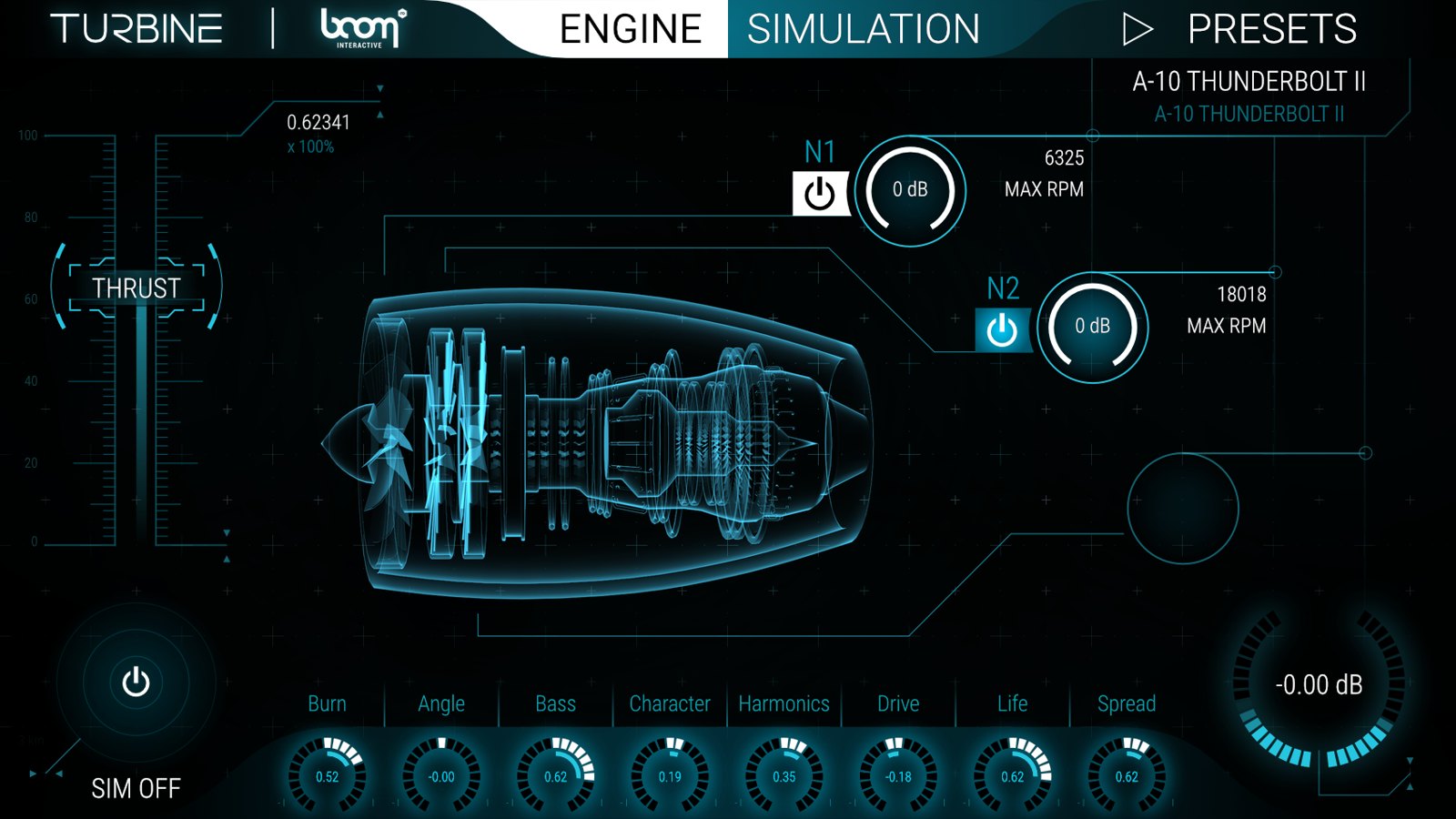
When the plug-in has been opened, the ENGINE tab will be shown. The following parameters are available:
Thrust
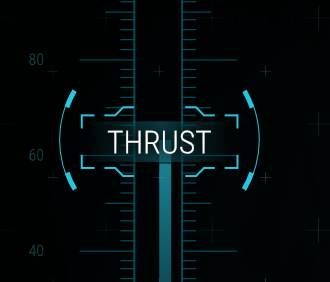
The large THRUST lever on the far left lets you control the rpm of the engine. At 0 % THRUST, there will be no output. The highest maximal value is 100%. You can either control it via the lever, or entering numeric values in per cent x 100 on the upper right side of the THRUST lever.
SIM On / Off
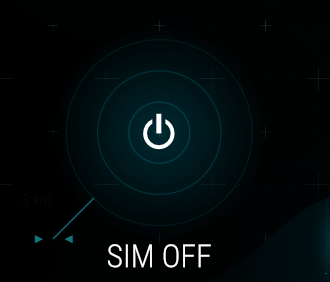
The little radar on the bottom left corner of the interface lets you not only activate or deactivate the simulation page, it also gives you an idea of the movement if the simulation is turned on but you are still on the ENGINE tab. Each circle represents one kilometer distance to the listener position (3 circles x 1km = 3km radius = 6km diameter!).
Sound Controls
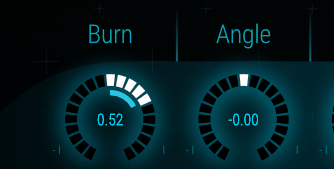
On the bottom of the interface you will find eight knobs, ranging from minus 1 to plus 1. They control the sound character of the engine as follows:
Burn
This determines how much fuel is given into the combustion chamber. If the turbine has afterburn, BURN will get very aggressive when turned up to 1. Note that by far not all airplanes and of course no none-plane turbines have an afterburner.
Angle
Changing the listener perspective or the angle relative to the engine changes the sound. In general it mostly results in a more tonal sonic character when the engine is turned towards a front view (ANGLE is turned to the right toward plus 1) and a noisier sonic character when the listener moves to the back of the engine (ANGLE is turned to the left towards minus 1). Even though not represented visually, plus 1 (right) equals a 90° turn to the front, which means the listener’s position is in front of the engine, whereas minus 1 (left) equals a 90° turn to the back, which means the listener is positioned at the back of the engine. You can simulate full 360° cycles by going from centered 0 to minus 1, then to plus 1 and back to the centered 0.
Bass
Adds low end for a more rumbling sound. This is specifically useful to get more variations during the SIMULATION, but also can beef up the close up view when SIMULATION is turned off.
Character
The CHARACTER can alter different things. If not stated otherwise in the PRESET-Description, CHARACTER alters the strength of resonances which mostly occur when the engine is on load. Some presets use CHARACTER to alter other sonic behavior of the engine as explained in the PRESET-Description.
Harmonics
Adds or subtracts overtones of only the tonal components of the engine.
Drive
Adds or reduces distortion.
Life
With LIFE you can push or lower the strength of the modulation within the engine. More LIFE can be more interesting, especially for longer scenes at static rpm values, whereas for more modern, technologically advanced sound characters or for creating loops it may help to flatten natural modulations.
Spread
Alters the stereo width of the engine. This function has no effect during the SIMULATION. Experiment as to what suits your needs best.
TIP: A good way to get a stereo feel might be to set the spread to minus 1 = mono and use reverb instead of spreading the TURBINE too wide.
N1, N2, N3 and CBC
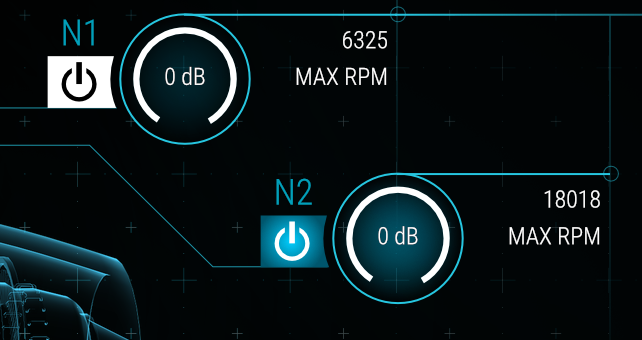
The TURBINE features three stages: Low pressure, intermediate pressure and high pressure plus the combustion chamber CBC. Altering those parameters can drastically impact the behavior of the engine, letting you create completely new and most likely non-existent engines.
Not all turbines have more than one stage, only a few have three stages. If a stage is not used in a preset, it is disabled and cannot be activated. To further alter the sound you can change the amount of burning noise or completely mute it using the combustion chamber (CBC) control.
Nx On / Off and CBC On / Off
The power knob just next to each of the stages Nx and the combustion chamber CBC lets you activate or deactivate the respective stage. This alone will result in a very different sonic character of the engine.
Nx Volume and CBC Volume
The circle with the initial 1.00 lets you create new “mixes” of the stages by lowering the volume of one or more stages or the combustion chamber.
Nx Max RPM
Again, something that drastically changes the sonic behavior: For instance, you can let N2 rise faster with higher THRUST levels or – if the relations are kept – simply change the highest tone at 100% THRUST.
NOTE: Lowering or raising these MAX RPMs in a stage is absolutely not the same as using different “Thrust” settings. For example: 50% THRUST of a preset will sound completely different compared to dividing all MAX RPMs by two and pushing the THRUST to a 100%.
Meter
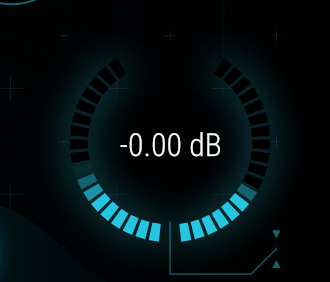
The METER on the lower right corner of the interface shows the RMS volume of the plug-in in dB. The red light indicates, that the soft clipper is active (see VOLUME), starting at minus 3 dB. So red does not mean clipping, but rather more saturation / distortion.
Volume
The TURBINE features a soft clipper before any audio goes into the channel of your host. The VOLUME lets you alter the output PRE(!) soft clipper. You can lower the VOLUME in dB to get a more dynamic and with some presets less aggressive sound. But you can also add extra gain pre soft clipper to get a denser and more distorted sound.
Preset Names
In the upper right corner, just below the PRESETS button you can see which presets are currently selected for both the “ENGINE” page and the SIMULATION page. Depending on which tab is selected (currently the ENGINE tab), the preset of either the ENGINE (upper text) or the SIMULATION (lower text) will be highlighted.
Simulation
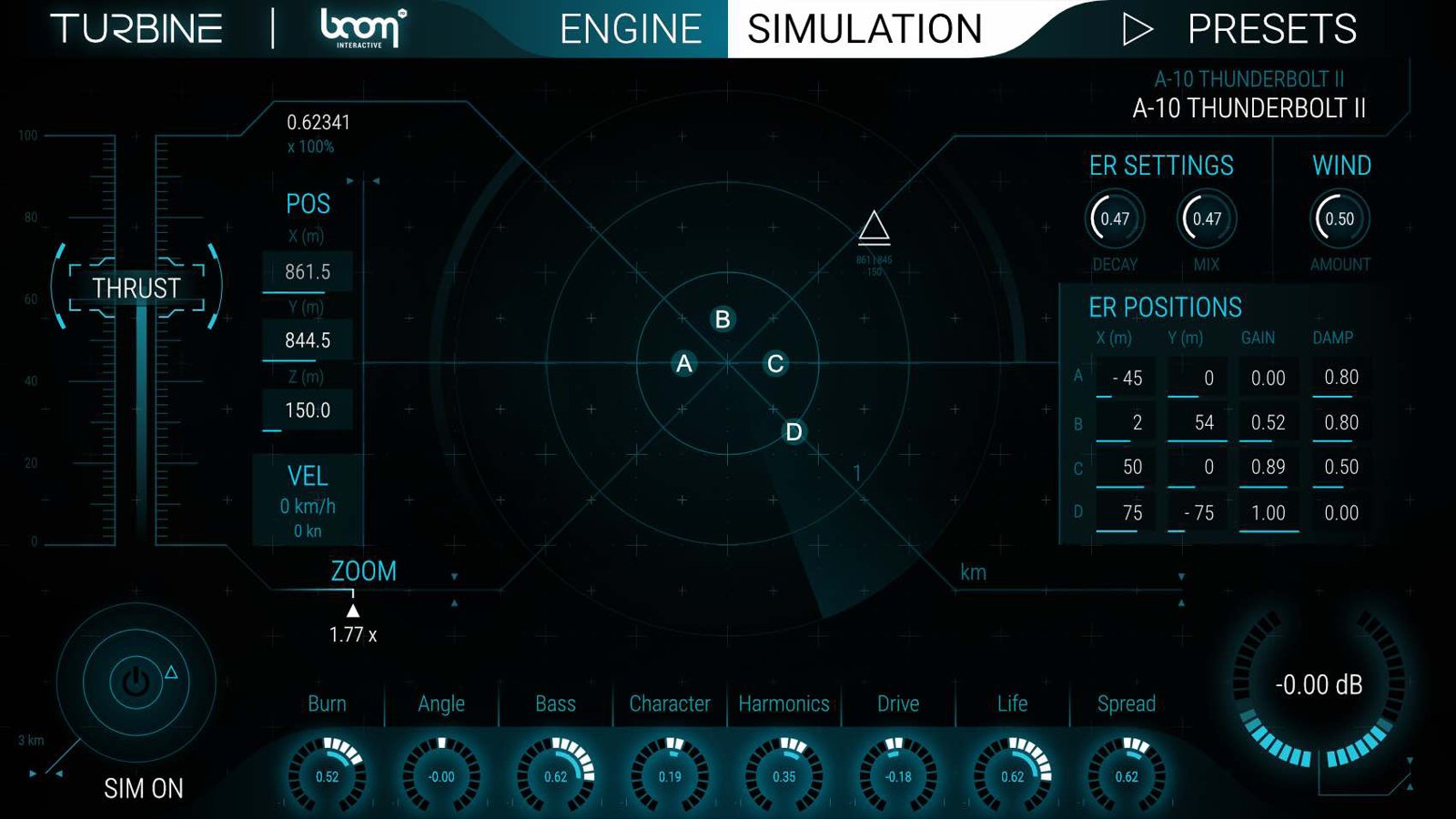
The SIMULATION page shares a lot of controls with the ENGINE page. However the most significant element here is the big radar at the center of the screen.
NOTE: You will encounter a delay within the SIMULATION. This is due to smoothing that has to be applied for generating plausible movement as well as acoustic properties like the speed of sound.
Radar
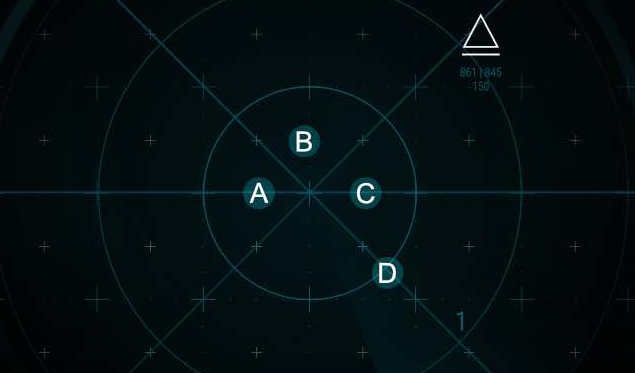
In the center of the interface you can see a big radar screen. When the SIMULATION is running a scanner circles around the radar (to activate and deactivate the SIMULATION use the small radar button on the lower left corner). By default, zoom (3x), the outer radar line is at a 1km distance.
The white triangle shows the current position of the engine. To write automation for flight paths, you can grab the triangle and move it around by holding the left mouse button pressed. As soon as you move the engine around in space, you will see several parameters changing on the left side of the radar.
POS (Position)
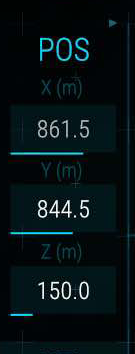
On the left side of the radar you will find the current X / Y / Z positions of the engine in meters in relation to the centered listener position. You can numerically input those values as long as no automation overwrites it.
NOTE: Abrupt changes in direction or position of the engine in the environment might result in weird sonic outputs.
VEL (Velocity, Speed)
The speed of the engine within the simulated space will be displayed here when the engine is in motion. Whenever you fly around, please make sure to have reasonable speeds or expect rather experimental outcomes (which is fine if it suits your needs of course). The display shows kilometers per hour (km/h) and knots.
ZOOM
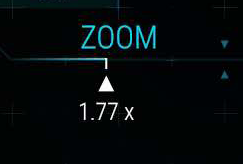
You can zoom the main radar in the middle of the interface to get more control up to factor 3x. If fully zoomed in, the outer line of the radar will be 1km. At zoom factor 1x, the outer line will show distance of 3km.
White Dot and Arrow

The white dot and arrow will only be shown when the engine is out of the visible radar zoom to give you some indication of where the engine is located. You can still grab the white dot and move it around back into the visible radar.
ER Settings
ER = Early Reflections, whereby “early” in these dimensions is pretty far away compared to studio reverbs. There are four sound reflecting obstacles that can help to get a better sense of the engine’s position during movement and to create a more natural environment. You can alter the settings of those in several ways. These ERs basically work like delays which you can place in the room.
ER Decay
The feedback of the ERs. Be aware that each ER only bounces off of the other ERs, so feedback does not mean each ER feedbacks itself. You rather set the material the reflecting surfaces are made of, determining how reflective they really are.
ER Mix
Allows you to change the mix of the ERs compared to the original, dry engine output.
ER Positions
You can alter the X and Y coordinates in meters for each of the four reflective obstacles as well as the gain and damping. The maximum distance of each ER is a bit less than 100m (X=70m, Y=70m). You can also change the position of the obstacles within the radar. Simply left click and hold one of the ERs A, B, C or D and move it around.
NOTE: The ERs distance to the viewer is the actual radar distance divided by ten. ERs in the radar might be closer than they appear!
ER Gain
It is possible to mix the ERs differently. In most scenarios, the further away one ER is, the less gain you want to set here. But, of course, this is a matter taste.
ER Damp
It is also possible to alter the individual feedback behavior independently from the general ER DECAY parameter. ER DAMP in combination with ER GAIN can simulate different materials or sizes of each of the four ERs A, B, C and D.
Wind
To the right of the ER DECAY and ER MIX settings you will find another parameter, called WIND. This lets you lower or strengthen the Lorenz-attractors that result in wind modulation of the engine in the simulated space.
Presets
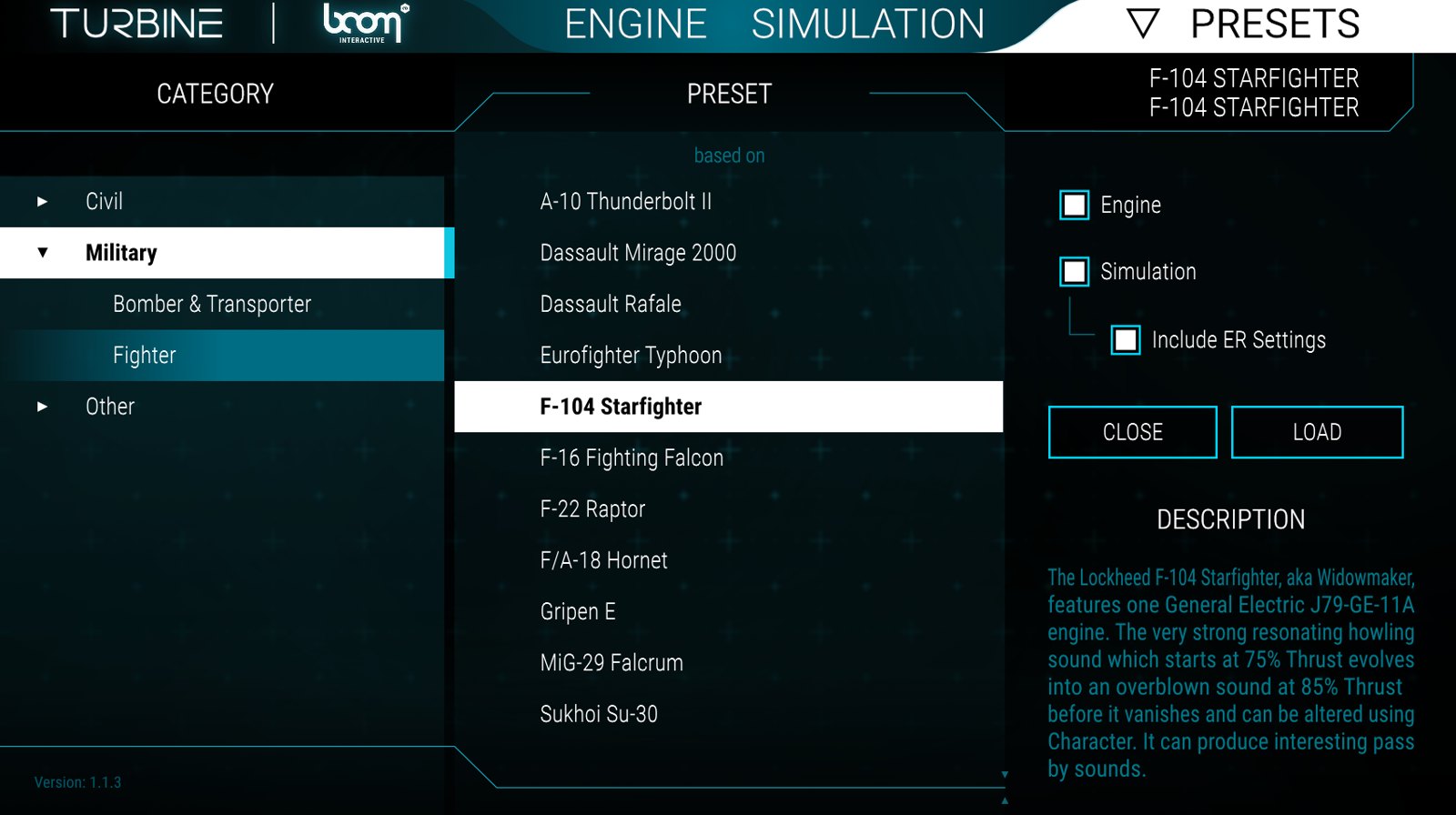
The PRESETS browser allows you to browse through categories and load either an ENGINE or SIMULATION setting or both simultaneously.
- Chose a CATEGORY and Sub-CATEGORY first, then select a PRESET. There is always a description to give you an idea of the preset as well as tips for special content. On the right, you can choose if you want to load the ENGINE and SIMULATION parameters combined, which is the recommended way to get coherent results.
- To get more diverse or even experimental you can also select a PRESET and load the parameters of the SIMULATION only to combine these with the currently loaded ENGINE or the other way around. If you already set the ERs corresponding to the environment you need the SIMULATION to take place in, you can exclude or include the preset’s ER SETTINGS.
The status of what is currently being loaded can be seen at the upper right corner of the PRESET page. ENG stands for ENGINE and SIM for SIMULATION.
Tips and Tricks
General
Smooth Behavior vs. Audible Steps
To achieve the smoothest sound behavior, use automation instead of mouse inputs. The resolution of automation is much higher compared to mouse inputs. When you first start raising the THRUST via mouse input and you hear steps, this is not because the resolution within the TURBINE is not high enough, it simply is because the resolution of the mouse input may not be high enough and you should use automation instead.
Engine
Startup Speed
It cannot be emphasized enough: The impression of size is primarily a result of the acceleration (increase of RPM) during the start up phase of the engine. A vacuum cleaner or hair dryer will be at full THRUST within seconds, reaching up to and above 100,000 rpm. There is no plane turbine engine that will even reach such a high rpm count. Use the THRUST lever with caution.
As a basic rule: a fighter jet engine start-up from 0 rpm to idle which is mostly around 50 % to 60 % THRUST will take between 30 and 60 seconds. If your scene is shorter, try to use the same start-up speed but less range of the THRUST. To test a slow power-up or down, you can drag one of the decimal points of the THRUST value up or down. The decimals further right allow finer adjustments, resulting in a more precise and smoother sound.
Description
Read the preset description carefully, especially for the CHARACTER parameter there sometimes are interesting sound shaping possibilities. If resonances can be altered, the reason mostly is that the resonances only occur on load, for example during start-up, but not off-load (during wind down).
Angle
The ANGLE parameter is independent from the angle within the SIMULATOR, so you can use this to generally alter the timbre of the sound.
Environment
Reverb helps to blend the TURBINE into a given scenario. When the SIMULATOR is not running, you basically hear the ENGINE at virtually zero distance in an anechoic chamber. Adding third party delays and / or reverb to put this engine into an environment will help to mix it into a scenario.
Processing
In general: Feel free to add more distortion with third party plug-ins, use EQs to further shape the sound, let the TURBINE stutter with tremolators, experiment with the audio output in all ways you would do with real recordings. Jet engines you hear on YouTube for example are highly compressed / limited ultimately distorted because of the devices they are recorded with. It is easy to get this impression with some distortion and plenty of limiting. What is offered in this plug-in is a turbine sound as clean as it can get.
On-Load vs. Off-Load
Yes, an airplane engine has this as well. In all presets BURN at the initial center position zero is an average value. If you want to raise the THRUST, push the BURN first a bit and then dial it back to a little above zero. Before you lower THRUST you might want to lower BURN to below zero, to get a nice and less powerful / noisy wind down.
Starting Multiple Engines
The B52 super fortress, a huge beast of a flying machine, has eight engines under its wings to give an example. In reality they all start one after another and not simultaneously. The same actually applies to planes with only two engines. If you really need this, you can certainly instantiate several TURBINE plug-ins to get the correct start-up procedure. We would then recommend to lower the SPREAD and rather pan the instrument tracks. For as much as eight engines, you might want to go completely mono and melt them together with some third party outdoor reverb / delays.
Simulation
Movement Speed
At the risk of repeatedly repeating ourselves, faster is not always better or more powerful. Always keep realistic speeds in mind (see PRESET descriptions), or at least speeds that make sense in your scene.
Altering Speed
Let’s say your plane moves from the far left to the far right at a constant distance of 250 meters in front of you at 250m height at a constant 500km/h speed. Now you think this is boring and you want to alter the speed, but the X coordinates suit the scene perfectly. There are two ways:
- Set an automation point at the closest spot on the Y or Z axis and raise the distance of one of them for the far left and far right position. The result will be that the engine has to cover a larger distance to be at the same position at the closest spot.
- You have set a full X / Y complicated flight path which you really like. Now you are not satisfied with the speed. You can use the Z axis in the same way to alter the speed without touching the X / Y coordinate automation.
More Modulation
We implemented a pretty complicated and – in a positive and natural sense – chaotic wind modulation based on the Lorenz system. However, this might still sound boring. Partly because not only the wind alters the sound of a moving airplane. What probably all of you know is the sound of an approaching airplane, ready to touch down on an airfield. There might be a constant wind up and wind down depending on the situation. Use the THRUST and automate it on top of the movement simulation to get more modulation into it.
But that is by far not everything you can do. Try to automate all those parameters at your disposal within the TURBINE, remove bass when the plane approaches and add bass when it passed the listener position. Give it more or less tonal elements during a pass using the ANGLE, alter the mixes of the stages Nx to get the well-known wobbling effect. Simply put: go wild with automation if needed.
Or possibly you want something more controllable? Then set the WIND on the SIMULATION page to zero, lower the LIFE parameter to minus 1, do not automate any other parameters except X / Y / Z parameters.
Delay / Smoothing Values
As mentioned before, there are several parameters to calculate mathematically only after it happened which results in the speed, distance, position (X / Y / Z), Doppler status and direction and a natural acoustic behavior of the ENGINE in motion. This smoothing is exponential and takes about 500ms. This is no latency, this smoothing is needed in order to avoid unrealistic acoustic behavior.
TIP: Especially when you are working with picture, you should start the flight path about a second before it appears in the picture so that the TURBINE has time to calculate speed within the SIMULATION. Simply use track volume automation to fade in and fade out as needed for the picture.
Host Specific
Logic Pro
TURBINE Fades Out
In Logic the instrument tracks behave a bit different compared to other hosts. When you select a track without a TURBINE on it and hit stop after playing back or recording, the tracks with active TURBINES will fade out to minus infinite dB until you play back again. When a track with a TURBINE active is selected and you hit stop, this specific TURBINE will still make sound even after you hit stop.
Pro Tools
TURBINE Not Available
In Pro Tools you can use the TURBINE on either an instrument track or an audio track. However, these tracks must be stereo (or quad) tracks in order to show the TURBINE in you plug-ins. You will find it in the insert/multichannel plug-in/Instrument/ folder when inserts are sorted by categories or in the insert/multichannel plug-in/BOOM Interactive/ folder when inserts are sorted by manufacturer.
Postface
Final Thoughts
We used several terms related to the engine in a more commonly understandable way instead of a fully technically correct sense. Some examples:
A turbine is in fact only a small part of the engine; there are also one or more fans, several compressors and the combustion chamber.
We also always use a 100% Thrust as a maximum. In fact, our 100% is already the maximum rpm the specific engine on a specific airplane can reach. Normally an engine can stand more than 100% rpm for a short amount of time (often around two minutes), for example for starts. Assuming this is 104% for one spool, this equals 100% THRUST in our plug-in.
Not even the percentages you see in our plug-in might be entirely correct. In reality the shafts do not wind up at the same speed and possibly do not have the same rpm at any given moment plus the shaft speeds are often independently controllable by the pilot. If you need more specific results, you can always use TURBINE plug-ins, mute N2 on the first one and N1 on the second one using the same PRESET and control them individually. But remember, the shafts Nx in the Turbine do not necessarily rise in a linear way.
There are four main types of gas turbine engines and we reproduce two of them: Turbofan and turbojet engines.
We tried very hard to make a highly advanced technical topic as easy to use and easy to understand as possible. This means, if you are a real gas turbine geek, you will find things that technically are not perfectly accurate. Feel free to contact us; I am confident that we have thought about it and exchanged correctness for usability on purpose. Also feel free to contact us for custom engine sound design. We are always open for that.
Lastly, here are some thoughts on you can use the TURBINE (just some examples where turbine sounds have been used in the past):
- You can create some nice whooshes for general use and highlights in totally non-turbine related situations using the SIMULATION.
- Check out science fiction vehicles, wheeled or winged. Most likely you will hear turbine sounds at least as a layer.
- Any car can be accelerated with turbine sounds, simulating a super charger.
- Robots’ movements, small and large, can be supported with turbine sounds.
- Current or future machinery in general.
- Room tones can be created with the industrial turbines (or any other suitable engine).
- Remember the famous race one of the biggest SciFi franchises? Most of those vehicles are combinations of turbine recordings and a wild combination of other sound sets.
- All kinds of spaceships are great with some support of turbine-ish sounds.
- Trailer music, trailer rises, trailer highlights – a very typical scenario to use rising turbine material.
We hope you have a lot of fun using this plug-in and produce some amazing sounds for mind blowing productions.
Sincerely yours,
The BOOM Interactive Team
End-User License Agreement
This license agreement is a single-user license agreement. For multi-user licenses and multi-user discounts, please contact us via service@boomlibrary.com
The following End User License Agreement ("EULA") represents the contractual conditions between you ("Licensee" or “you”) and BOOM Library ("BOOM", visit www.boomlibrary.com/about for the official legal company details and address) for the use of audio software plug-ins including related media, documentation (e.g. manuals) and other documents and materials (e.g. presets) manufactured by BOOM ("audio-plug-ins" or “software”). By installing and by registering the software on your computer, you declare yourself in agreement with these conditions. If you do not agree with these conditions, you are not allowed to install the software. Copyright laws and international copyright treaties, as well as other intellectual property laws and treaties protect the content. All rights not expressly granted to Licensee hereunder are reserved by BOOM.
SECTION 1 – INTRODUCTION:
- What You Get:
- You get to install the software on up to two (2) computers that you, only, use. They can be your computer in an edit bay and a laptop for the field, or your computer at work (or school) and your computer at home, etc.
- Please note that you need a sequencer software to run our audio plug-ins which is not included in this license.
- You can copy the software only once, for the sole purpose of making a backup copy.
- If you need licenses for multiple people or more workstations, you will need to get a multi-user license from us. Please contact us for multi-user pricing.
- If you are an educator and need a license for your lab please contact us for educational pricing.
- You can export, render out, re-record or otherwise save any type of sound, noise, music, pad (“work”) created with our audio plug-in and its presets and use it as part of any video, game, audio library or other media production (“media projects”), even other people’s media projects that you didn’t do, if the works are made from the copy of the audio plug-in you have on your computer and used as per our End User License Agreement.
- What You Don’t Get:
- You don’t get to make any other copies of the audio plug-in.
- Please don’t share our audio plug-ins on the internet – we are a small company, and unlicensed copies hurt our ability to make the software better for you and bring you new products in the future.
- You cannot use our audio plug-ins to create works for stand-alone sound effect libraries, neither commercial, nor non-commercial, since this would hurt our business. If you want to use your works using our audio plug-ins to create your own sound effect libraries, you need an “Audio Developer License” from us, please contact us for this.
SECTION 2 – OWNERSHIP:
- The enclosed audio plug-ins and related instructions are licensed (not sold) to you, and BOOM retains all ownership interests and intellectual property rights in the Software.
SECTION 3 – SOFTWARE LICENSE:
- BOOM grants you a nonexclusive, nontransferable license to (i) install and use one copy of the Software on up to no more than two (2) computers both of which must be owned and used by you and (ii) make one copy of the Software for back-up or archival purposes only.
- The software cannot be installed on a network server, without contacting us and asking for a Network license required for each workstation served on such network. You may not:
- copy (other than for a second computer owned and used by you and for back-up purposes), disclose, publish, export, distribute, rent, lease or sublicense
- remove any BOOM trademarks or copyright notices from;
- modify, translate or prepare derivative works of;
- use in a computer-based services business or publicly display visual output of;
- transmit by audio, digital or other electronic means or post software on any file-sharing site or
- reverse engineer, decompile or disassemble all or any portion of the audio plug-in in any form, except as expressly licensed herein.
SECTION 4 – AUDIO RIGHTS (RIGHTS TO THE WORKS):
- This license grants the rights to produce new works using our audio plug-in. Such new works can be created using the presets included in the audio plug-in. This license includes the worldwide, royalty-free, non-exclusive right to combine or sync works created with our audio plug-in into media projects without
- paying any additional license fees to BOOM or any third-party other than the purchasing cost of this license;
- obtaining additional clearances or permissions; or
- providing source attribution to BOOM.
- This license includes mechanical, synchronization, public performance and broadcast rights.
- This license grants the worldwide and limited right to Licensee to use, re-record, duplicate, incorporate, modify, adapt, embed, and exploit all or a portion of the works created with our audio plug-ins without further payment to BOOM or any third party (royalty free). The media projects that can use the works created under this license using our audio plug-ins need to contain an additional element: i.e. voice, music, image, etc. Examples of allowed uses are, without limitation, inclusion in radio programs, podcasts, mobile apps, television broadcasts, film soundtrack, music albums, PowerPoint presentations, sound effects libraries, software instruments, websites, advertising, multi-media presentations, video games and other similar products.
SECTION 5 – LIMITATIONS:
- This license expressly forbids any unauthorized inclusion of works created using our audio plug-ins (in whole or on part) like for example sample instruments, sound effects libraries, etc.) online or offline without express written consent of BOOM.
- This license also forbids any stand-alone re-distribution method of the works and our audio plug-ins, through any means, including but not limited to, re-selling, trading, sharing, re-sampling, mixing, processing, isolating, or embedding into other software except video games or hardware of any kind, for the purpose of re-recording or reproduction as part of any free or commercial library of musical and/or sound effect samples and/or articulations, or any form of musical sample or sound effect sample playback system or device.
- Licensee is prohibited from using works and our audio plug-ins in any product that is substantially sound effects audio and therefore would compete with other present and future BOOM products. Substantially, for the purposes of this license, is defined as containing pure sounds (without mixed in voice or music) for 80% or more of Licensee’s entire projects. Upon written request that details such potential use by Licensee, BOOM will furnish a safe-harbor letter within 30 days allowing or disallowing use for the described project.
- All licenses and rights under this license are nontransferable, which means Licensee may not sell, gift, or in any way allow another individual or business the rights obtained pursuant to this license except to Licensee’s affiliates and successors. In the event that the Licensee is acquired by another business or organized under another business name or tax entity, all licenses and rights under this AGREEMENT may be transferred provided that number of users and workstations has not increased and BOOM is notified of this transfer in writing within 30 days.
SECTION 6 – USER RESPONSIBILITY:
- Licensee is responsible for installation, management and operation of the Software. Further, Licensee agrees to indemnify, hold harmless and defend BOOM from and against all claims or lawsuits, including attorneys' fees, that arise or result from any use or distribution of the Software not expressly authorized in this Agreement.
- Warranty. BOOM warrants the Software media (e.g. download) to be free from defects in materials and workmanship for a period of sixty (60) days from the date of purchase. BOOM will replace any such defective media returned to BOOM during such warranty period, provided such defect is not the result of improper use or neglect, or if BOOM is unable to do so, it will refund your price for such defective Software. Replacement (or refund) is the exclusive remedy for any such defects, and BOOM shall have no liability for any other damages.
- THE FOREGOING WARRANTY IS IN LIEU OF ALL OTHER EXPRESS OR IMPLIED WARRANTIES, INCLUDING ANY WARRANTIES OF MERCHANTABILITY OR FITNESS FOR A PARTICULAR PURPOSE. IN NO EVENT WILL BOOM BE LIABLE FOR ANY KIND OF SPECIAL, INCIDENTAL OR CONSEQUENTIAL DAMAGES, INCLUDING LOST PROFITS, EVEN IF BOOM HAS KNOWLEDGE OF SUCH POTENTIAL LOSS OR DAMAGE.
SECTION 7 – TERMINATION AND RESERVATION OF RIGHT:
- This Agreement is effective until terminated. You may terminate it at any time by destroying the Software, including all computer programs and documentation, and erasing any copies residing on computer equipment. This Agreement also will terminate if you do not comply with any terms or conditions of this Agreement. Upon such termination you agree to destroy the Software and erase all copies residing on computer equipment.
- This Agreement may be subject to alterations, due to changes in law, new distribution channels, acquisition of BOOM by a third-party entity, new rules applied by third party software providers on whom BOOM’s software rely on. BOOM warrants that any such alternation will happen in the best interest of the Licensee and BOOM and that BOOM will inform Licensee in due time and in written form of any such changes.
SECTION 8 – AGREEMENT:
- This Agreement expresses the entire understanding between you and BOOM and supersedes all other oral or written communications relating to the Software. This Agreement shall be governed and construed under the laws of the Federal Republic of Germany and subject to the exclusive jurisdiction of the courts therein.
- Some content included BOOM’s Software, as well as any associated intellectual property rights and titles, belongs to third parties. This content may be protected by copyright or other intellectual property laws and treaties and may be subject to terms and conditions from the third party providing the content.
- If any section of this EULA should be or become invalid, either completely or in part, this shall not affect the validity of the remaining sections. The parties agree that they make good effort to replace the invalid section with a valid regulation which comes as close as possible to the purpose originally intended.
APPENDIX A: SOFTWARE LICENSE AGREEMENTS OF THIRD PARTIES
I - Inno Setup License:
Except where otherwise noted, all of the documentation and software included in the Inno Setup package is copyrighted by Jordan Russell. Copyright (C) 1997-2013 Jordan Russell. All rights reserved. Portions Copyright (C) 2000-2013 Martijn Laan. All rights reserved. This software is provided "as-is," without any express or implied warranty. In no event shall the author be held liable for any damages arising from the use of this software. Permission is granted to anyone to use this software for any purpose, including commercial applications, and to alter and redistribute it, provided that the following conditions are met:
- All redistributions of source code files must retain all copyright notices that are currently in place, and this list of conditions without modification.
- All redistributions in binary form must retain all occurrences of the above copyright notice and web site addresses that are currently in place (for example, in the About boxes).
- The origin of this software must not be misrepresented; you must not claim that you wrote the original software. If you use this software to distribute a product, an acknowledgment in the product documentation would be appreciated but is not required.
- Modified versions in source or binary form must be plainly marked as such, and must not be misrepresented as being the original software.
Jordan Russell, jr-2010 AT jrsoftware.org, http://www.jrsoftware.org/
II - ffGuiAttachments
Copyright (c) 2016, Daniel Walz, All rights reserved. Redistribution and use in source and binary forms, with or without modification, are permitted provided that the following conditions are met:
- Redistributions of source code must retain the above copyright notice, this list of conditions and the following disclaimer.
- Redistributions in binary form must reproduce the above copyright notice, this list of conditions and the following disclaimer in the documentation and/or other materials provided with the distribution.
- Neither the name of ffGuiAttachments nor the names of its contributors may be used to endorse or promote products derived from this software without specific prior written permission.
THIS SOFTWARE IS PROVIDED BY THE COPYRIGHT HOLDERS AND CONTRIBUTORS "AS IS” AND ANY EXPRESS OR IMPLIED WARRANTIES, INCLUDING, BUT NOT LIMITED TO, THE IMPLIED WARRANTIES OF MERCHANTABILITY AND FITNESS FOR A PARTICULAR PURPOSE ARE DISCLAIMED. IN NO EVENT SHALL THE COPYRIGHT HOLDER OR CONTRIBUTORS BE LIABLE FOR ANY DIRECT, INDIRECT, INCIDENTAL, SPECIAL, EXEMPLARY, OR CONSEQUENTIAL DAMAGES (INCLUDING, BUT NOT LIMITED TO, PROCUREMENT OF SUBSTITUTE GOODS OR SERVICES; LOSS OF USE, DATA, OR PROFITS; OR BUSINESS INTERRUPTION) HOWEVER CAUSED AND ON ANY THEORY OF LIABILITY, WHETHER IN CONTRACT, STRICT LIABILITY, OR TORT (INCLUDING NEGLIGENCE OR OTHERWISE) ARISING IN ANY WAY OUT OF THE USE OF THIS SOFTWARE, EVEN IF ADVISED OF THE POSSIBILITY OF SUCH DAMAGE.
III - Cycling '74 License for Max-Generated Code for Export
Copyright (c) 2016 Cycling '74. The code that Max generates automatically and that end users are capable of exporting and using, and any associated documentation files (the “Software”) is a work of authorship for which Cycling '74 is the author and owner for copyright purposes.
THE SOFTWARE IS PROVIDED "AS IS", WITHOUT WARRANTY OF ANY KIND, EXPRESS OR IMPLIED, INCLUDING BUT NOT LIMITED TO THE WARRANTIES OF MERCHANTABILITY, FITNESS FOR A PARTICULAR PURPOSE AND NON-INFRINGEMENT. IN NO EVENT SHALL THE AUTHORS OR COPYRIGHT HOLDERS BE LIABLE FOR ANY CLAIM, DAMAGES OR OTHER LIABILITY, WHETHER IN AN ACTION OF CONTRACT, TORT OR OTHERWISE, ARISING FROM, OUT OF OR IN CONNECTION WITH THE SOFTWARE OR THE USE OR OTHER DEALINGS IN THE SOFTWARE.
IV - OpenGL Mathematics (GLM)
GLM is licensed under The Happy Bunny License and MIT License. The Happy Bunny License (Modified MIT License). Copyright (c) 2005 - 2014 G-Truc Creation Permission is hereby granted, free of charge, to any person obtaining a copy of this software and associated documentation files (the "Software"), to deal in the Software without restriction, including without limitation the rights to use, copy, modify, merge, publish, distribute, sublicense, and/or sell copies of the Software, and to permit persons to whom the Software is furnished to do so, subject to the following conditions:
- The above copyright notice and this permission notice shall be included in all copies or substantial portions of the Software.
- Restrictions: By making use of the Software for military purposes, you choose to make a Bunny unhappy.
THE SOFTWARE IS PROVIDED "AS IS", WITHOUT WARRANTY OF ANY KIND, EXPRESS OR IMPLIED, INCLUDING BUT NOT LIMITED TO THE WARRANTIES OF MERCHANTABILITY, FITNESS FOR A PARTICULAR PURPOSE AND NON-INFRINGEMENT. IN NO EVENT SHALL THE AUTHORS OR COPYRIGHT HOLDERS BE LIABLE FOR ANY CLAIM, DAMAGES OR OTHER LIABILITY, WHETHER IN AN ACTION OF CONTRACT, TORT OR OTHERWISE, ARISING FROM, OUT OF OR IN CONNECTION WITH THE SOFTWARE OR THE USE OR OTHER DEALINGS IN THE SOFTWARE.
The MIT License
Copyright (c) 2005 - 2014 G-Truc Creation
Permission is hereby granted, free of charge, to any person obtaining a copy of this software and associated documentation files (the "Software"), to deal in the Software without restriction, including without limitation the rights to use, copy, modify, merge, publish, distribute, sublicense, and/or sell copies of the Software, and to permit persons to whom the Software is furnished to do so, subject to the following conditions:
The above copyright notice and this permission notice shall be included in all copies or substantial portions of the Software.
THE SOFTWARE IS PROVIDED "AS IS", WITHOUT WARRANTY OF ANY KIND, EXPRESS ORIMPLIED, INCLUDING BUT NOT LIMITED TO THE WARRANTIES OF MERCHANTABILITY, FITNESS FOR A PARTICULAR PURPOSE AND NON-INFRINGEMENT. IN NO EVENT SHALL THE AUTHORS OR COPYRIGHT HOLDERS BE LIABLE FOR ANY CLAIM, DAMAGES OR OTHER LIABILITY, WHETHER IN AN ACTION OF CON-TRACT, TORT OR OTHERWISE, ARISING FROM, OUT OF OR IN CONNECTION WITH THE SOFTWARE OR THE USE OR OTHER DEALINGS IN THE SOFTWARE.
V - Roboto Fonts
This application makes use of the Roboto fonts authored by Christian Robertson and made available through Google Fonts (fonts. google.com) under the terms of the Apache Software License v2. Version 2.0, January 2004, http://www.apache.org/licenses/
- Grant of Copyright License: Subject to the terms and conditions of this License, Apache hereby grants to You a perpetual, worldwide, non-exclusive, no-charge, royalty-free, irrevocable copyright license to reproduce, prepare Derivative Works of, publicly display, publicly perform, sublicense, and distribute the Work and such Derivative Works in Source or Object form.
- Trademarks: This License does not grant permission to use the trade names, trademarks, service marks, or product names of the Licensor, except as required for reasonable and customary use in describing the origin of the Work and reproducing the content of the NOTICE file.
- Disclaimer of Warranty: Unless required by applicable law or agreed to in writing, Licensor provides the Work (and each Contributor provides its Contributions) on an "AS IS" BASIS, WITHOUT WARRANTIES OR CONDITIONS OF ANY KIND, either express or implied, including, without limitation, any warranties or conditions of TITLE, NON-INFRINGEMENT, MERCHANTABILITY, or FITNESS FOR A PARTICULAR PURPOSE. You are solely responsible for determining the appropriateness of using or redistributing the Work and assume any risks associated with Your exercise of permissions under this License.
- Limitation of Liability: In no event and under no legal theory, whether in tort (including negligence) contract, or otherwise, unless required by applicable law (such as deliberate and grossly negligent acts) or agreed to in writing, shall any Contributor be liable to You for damages, including any direct, indirect, special, incidental, or consequential damages of any character arising as a result of this License or out of the use or inability to use the Work (including but not limited to damages for loss of goodwill, work stoppage, computer failure or malfunction, or any and all other commercial damages or losses), even if such Contributor has been advised of the possibility of such damages.
VI - Steinberg VST License
VST® is a trademark of Steinberg Media Technologies GmbH, registered in Europe and other countries.
LIMITATION OF LIABILITY
- Subject to the provisions in the following sub-sections, Steinberg shall only be liable, irrespective of the legal grounds, for damages caused by the intentional or grossly negligent conduct of Steinberg, its legal representatives, managerial employees or any other vicarious agents. In the case of damage caused by the grossly negligent conduct of any other vicarious agents, the liability shall be limited to those damages which must typically be expected within the scope of an agreement such as the present one. Any further liability other than as permitted under this agreement shall be excluded.
- Any liability of Steinberg for damages arising from violation of life, body and health, from the assumption of a guarantee or from a procurement risk as well as Steinberg's liability for damages pursuant to the Product Liability Act (Produkthaftungsgesetz) shall remain unaffected.
- To the extent the liability of Steinberg is excluded pursuant to the subsections of these provisions, this shall also apply to the benefit of Steinberg's employees in the event the Licensee files any claims directly against them.
PRODUCT WARRANTY
- Steinberg licences the VST PlugIn Interface Technology on an "AS IS" basis. Steinberg makes no warranties, express or implied, including without limitation the implied warranties of merchantability and fitness for a particular purpose, regarding the VST PlugIn Interface Technology or operation and use in combination with the Licensee’s program. Neither the Licensee, its employees, agents or Distributors have any right to make any other representation, warranty or promise with respect to the VST PlugIn Interface Technology.
- In no event shall Steinberg be liable for incidental, indirect or consequential damages arising from the use, or distribution of the VST PlugIn Interface Technology by the Licensee, whether theory of contract, product liability or otherwise. All claims for indemnification for losses by the Licensee itself or by third parties shall be excluded.
- Steinberg may in its sole discretion discontinue the distribution of the current VST PlugIn SDK and/or release improved versions of the Licensed Software Developer Kit but offers no commitment whatsoever those releases will occur at any time or for anybody.
INFRINGEMENT
- Steinberg represents and warrants that, as of the date of this Agreement, it is not aware of any claim or action alleging that VST, the VST PlugIn Interface Technology, or the content of the Licensed Software Developer Kit infringes any third party intellectual property right.
- Steinberg, however, disclaims any obligation of defense or indemnify of the Licensee or its customer with respect to any such claim or action, or otherwise arising out of this agreement. Steinberg shall have no liability arising out of any such actual or alleged intellec-tual property infringement. The Licensee, however, shall promptly notify Steinberg, in writing, of each such infringement claim of which the Licensee becomes aware. Steinberg may defend the Licensee against such claims. In such case, the Licensee is obligated to duly support Steinberg’s defense.
This is a software of BOOM Library.
All other product names, brands and trademarks, mention of which in this document and the software is for identification purposes only and does not imply affiliation or endorsement, are the property of their respective owners.

BOOM Library
Visit www.boomlibrary.com/about for the official company address.
www.boomlibrary.com
© BOOM Library, . All Rights Reserved.